
Overview
Some default WordPress themes (like Twenty Twenty-Four) may not display Gravity Flow pages correctly. The layout may appear broken, boxed in, or missing important content. This can be fixed by modifying or creating a more effective page template.
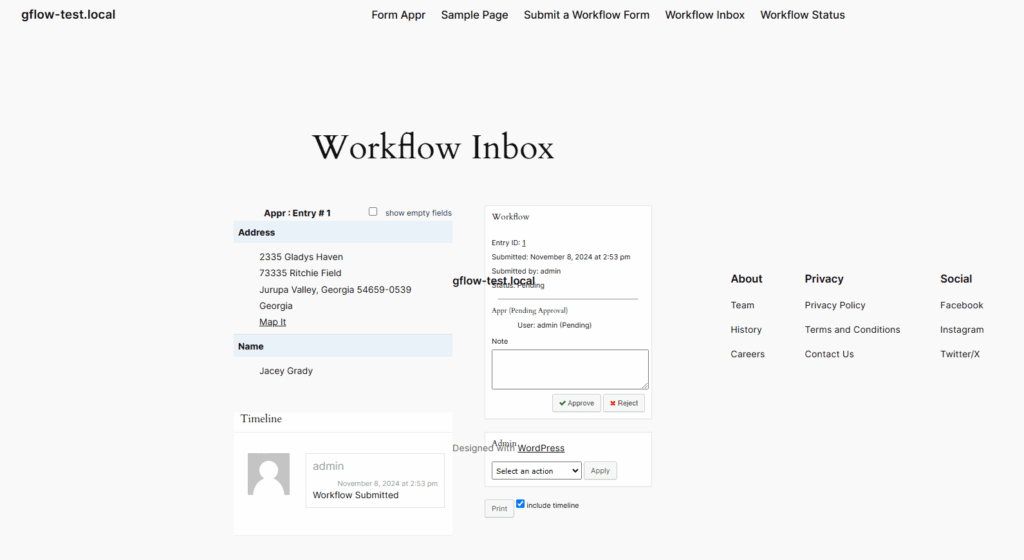
Symptoms
- Inbox, Status, or Submit pages look cramped or misaligned
- Sidebar overlaps the content
- Buttons or columns break or disappear
- Missing step headers or page sections
Solution
Use a “Full Width” or custom page template with no sidebar and minimal spacing. This works best with block themes using the Site Editor.
Option 1: Use a Default Template (if available)
- Go to Pages in your dashboard.
- Edit the workflow page (e.g., Inbox).
- In the right sidebar, find the Template setting.
- Click Change Template, if available, choose a template that is either:
– Full Width
– Blank
– Page with No Sidebar - Click Save
- Reload the page and check the layout
Option 2: Create a Custom Template (default themes only)
- Go to Pages in your dashboard.
- Edit the workflow page (e.g., Inbox).
- In the right sidebar, find the Template setting.
- Click Create new template.
- Name your template.
- Use the Block Editor and block settings to create a new template.
- Click Save.
Once the template is created, you can edit each workflow page listed below and follow the steps in option 1 to change the template to your new custom template.
- Inbox
- Status
- Submit
- Reports (if used)
Notes
- This fix applies to block-based themes with Full Site Editing (FSE).
- Classic themes may need PHP-based templates.
- If you’re using a page builder (such as Elementor, Beaver Builder, or Divi), ensure the workflow shortcode is placed in a full-width section or container with no sidebars or theme wrappers.