
Introduction
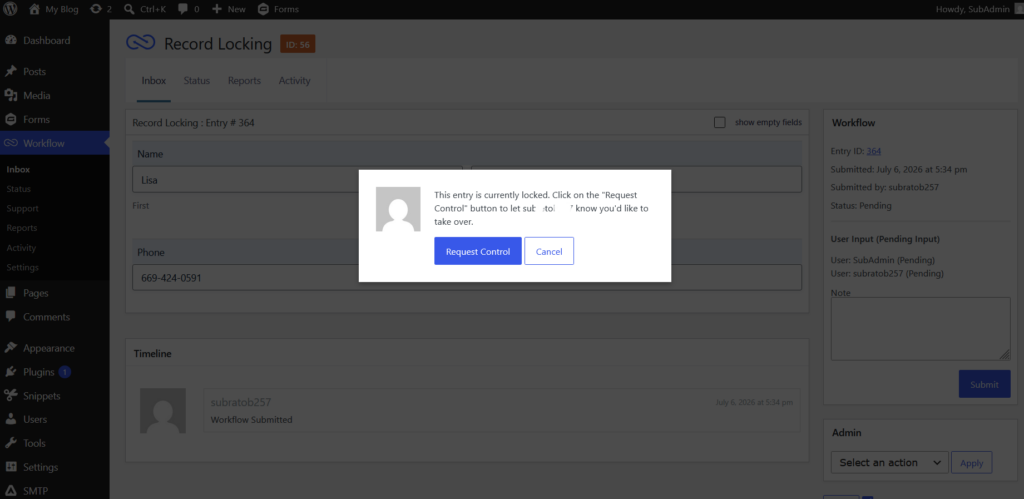
Understanding the message “This entry is currently locked” for workflow steps with multiple assignees.
Description
Opening any workflow entry detail page in the WordPress admin dashboard can trigger entry locking that prevents concurrent assignees from completing the step. This does not currently apply to entries accessed via the inbox/status blocks or shortcodes on the front-end of your site.
This entry locking feature was added in Gravity Flow 2.8. It is using the WordPress heartbeat API to track if the current user is still active or a lock should be released. The plugin Heartbeat Control can be used to to customize the timing which defaults to 15 seconds for the entry details screen and 60 seconds for the workflow settings screen.
The hook heartbeat_settings can be used to alter the ‘interval’ setting. Learn more about the Heartbeat API here.
add_filter( 'heartbeat_settings', 'custom_heartbeat_frequency' );
function custom_heartbeat_frequency( $settings ) {
    $settings['interval'] = 60; // seconds
    return $settings;
}
How to activate the entry locking on the front end
At present, entry locking is only supported when the Entry Details page is accessed via the WordPress admin Dashboard.
Can entry locking be disabled for the backend?
Yes, the following snippet can be used to disable heartbeat specifically for Gravity Flow and applies both on the Status and Inbox pages.
add_action( 'admin_enqueue_scripts', 'disable_gf_locking_scripts', 100 );

function disable_gf_locking_scripts() {
    if ( rgget( 'page' ) === 'gravityflow-inbox' && rgget( 'view' ) === 'entry' ) {
        wp_dequeue_script( 'gforms_locking' );
        wp_dequeue_script( 'gforms_locking_list' );
        wp_dequeue_script( 'gforms_locking_view' );
        wp_dequeue_style( 'gforms_locking_css' );
    }
}
Placement
This code can be used in the functions.php file of the active theme, a custom functions plugin, a custom add-on, or with a code snippets plugin.
See also the PHP section in this article: Where Do I Put This Code?