
Overview
This document explains how to locate the license keys for your Gravity Flow plugins and extensions, and how to activate them.
Finding and activating the license key for Gravity Flow
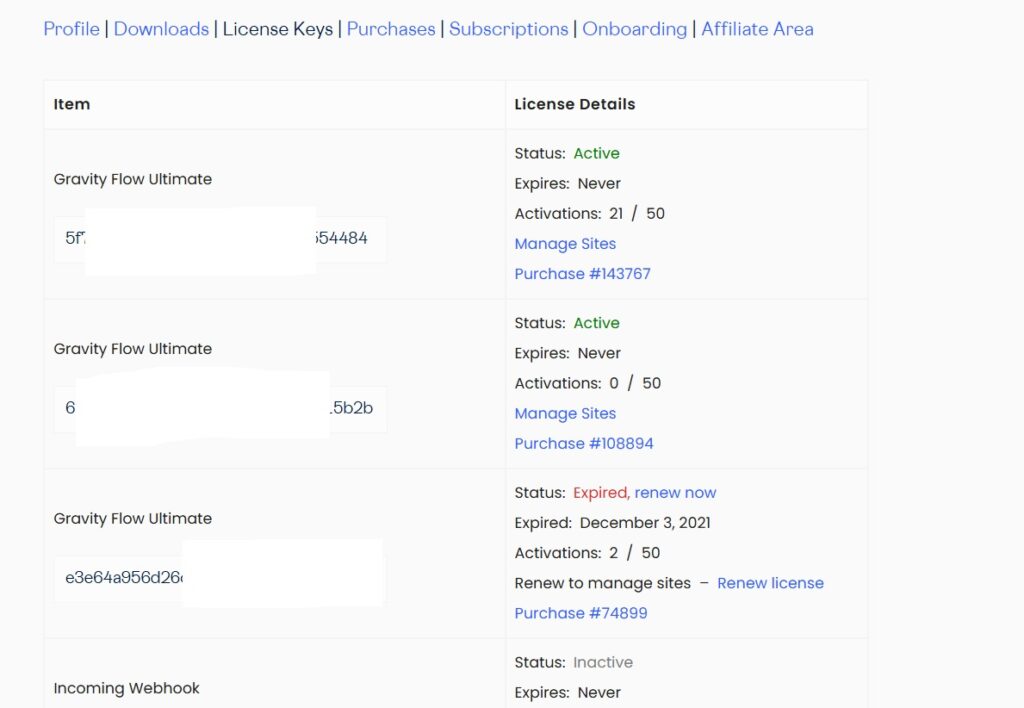
- Log in to the Gravity Flow account.
- Go to the License Keys tab.
- Copy the license key you want to activate.
In your WordPress dashboard:
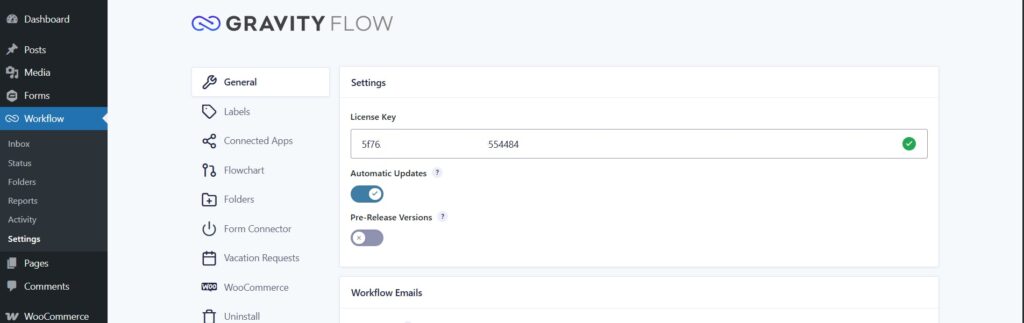
- Go to Workflow → Settings → General → License Key.
- Paste the license key you copied.
- Scroll down and click Update Settings.
- A green checkmark will appear next to the license key, confirming that it has been successfully validated.
License Keys for Extensions
- Ultimate license holders have a single license key that covers all extensions.
- Pro license holders have a single key for extensions bundled with the Pro license.
- Separately purchased extensions come with their own individual license key.
To activate an extension license key
- Copy the license key from the License Keys section of your Gravity Flow account.
- In your WordPress dashboard, go to Workflow → Settings.
- Click the name of the extension you want to activate.
- Paste the license key in the License Key field.
- Scroll down and click Save Settings. A green checkmark will appear next to the license key, confirming that it has been successfully validated.