
Introduction
The Stripe Extension includes a Subscription ID field, which you’ll find in the Workflow section of the Gravity Forms Form Editor.
What is the Subscription ID Field?
The Subscription ID field validates an existing Stripe subscription ID (format: sub_xxxxxxxxxxxx) when a user submits a form or completes a step with editable fields configured (Approval / User Input). Once validated, it displays basic subscription details on the entry detail page, workflow entry detail page, and in merge tags.
Note: This field validates existing subscriptions. It does not store the subscription ID from the current form submission or create new subscriptions.
Example
You could create a subscription management form where customers submit their Stripe subscription ID. An authorized approver can then process cancellations or changes with a one-click approval link in an email without having to log in to Stripe.
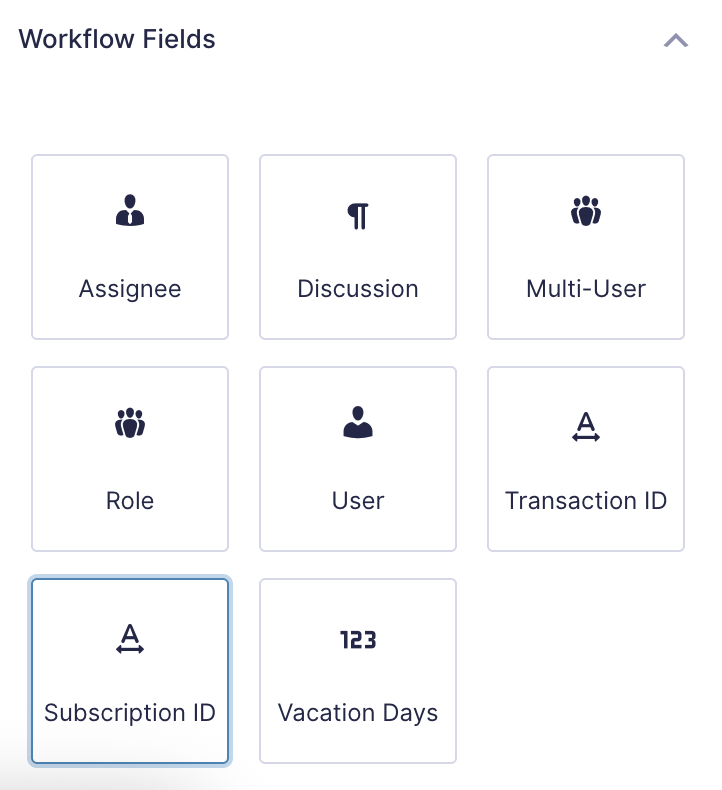
The purpose of this field is to facilitate the validation of a Subscription ID and provide basic details about the subscription in the entry detail page, the workflow entry detail page, and the merge tag.
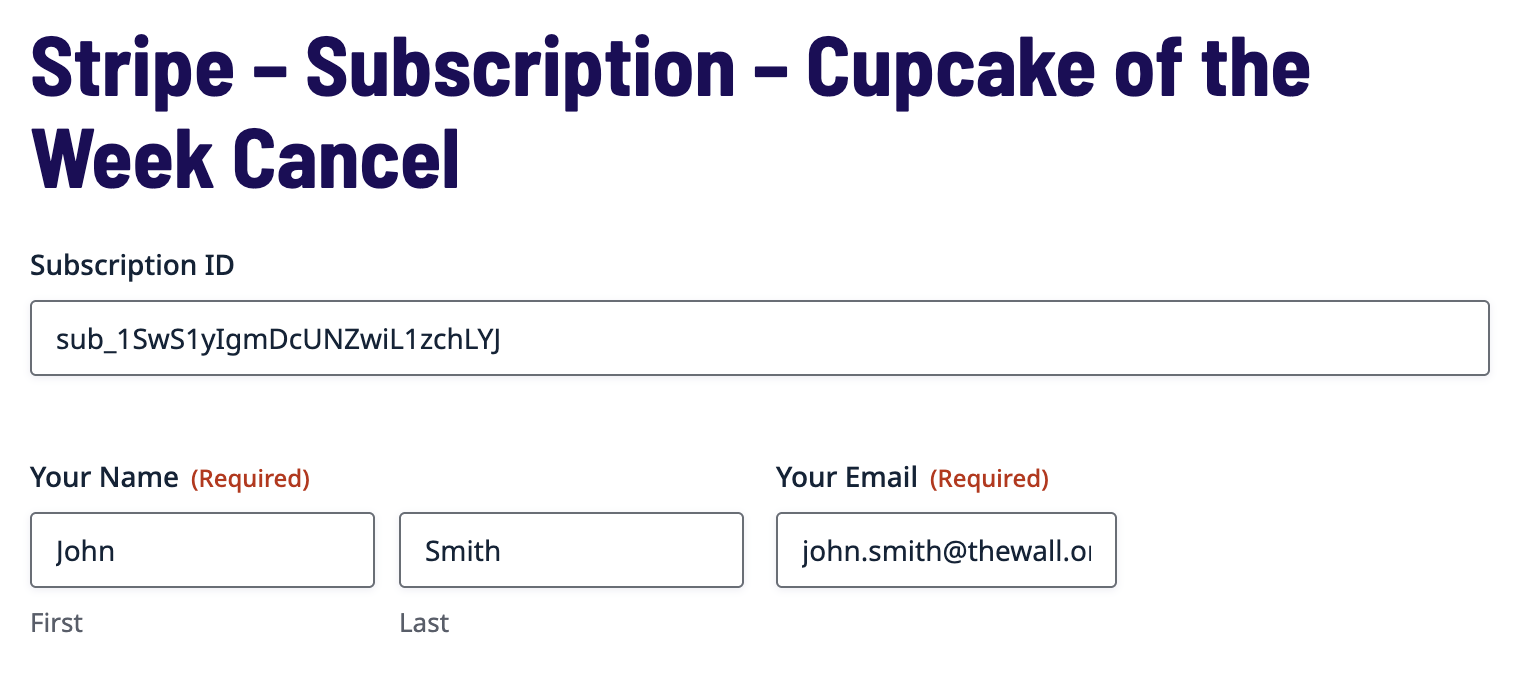
Field Display Behaviour
The Subscription ID field displays differently depending on whether it is defined as editable or display-only in step settings and whether the resource viewing the page is an assignee or not.
Display-only
Shows the full subscription details, including subscription ID, entry ID, submitted date, payment status, and payment amount.
Editable
Shows a text input field. If a subscription ID was previously provided, the field is populated with that value.
How Customers Can Find Their Subscription ID
If your customers needs to submit a subscription ID, you can provide it to them directly from Stripe or via confirmation or notification from a form that has a Stripe subscription feed configured via the {entry:transaction_id} merge tag.
Note: For subscriptions, the {entry:transaction_id} merge tag returns the subscription ID, not an individual payment transaction ID.
To locate a subscription ID in your Stripe Dashboard, navigate to Payments > Subscriptions and click on the specific subscription to view its details. The subscription ID appears at the top of the subscription details page.
Finding Subscription IDs in Existing Entries
For entries where a subscription was created, you can find the subscription ID in the entry details under the payment information section. The subscription ID is stored in the same location as transaction IDs and can be accessed using the {entry:transaction_id} merge tag.
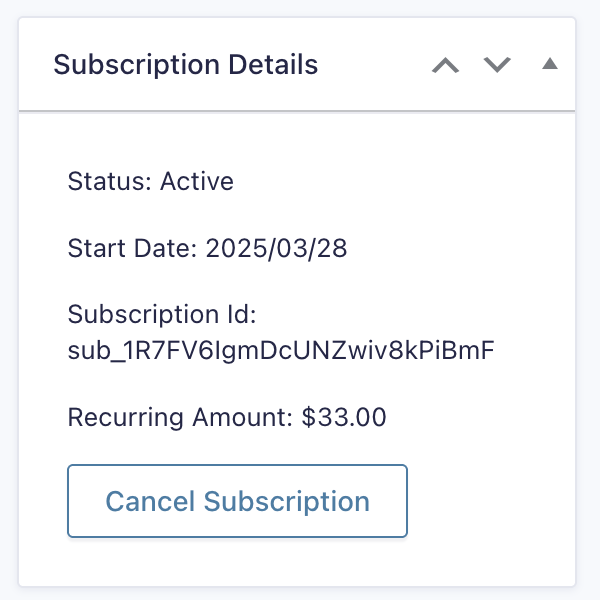
Where to Find Full Subscription Details
Full subscription details (including subscription ID, entry ID, submitted date, payment status, and payment amount) can be found in:
- Forms > Entries
View the entry detail page to see complete subscription information. - Workflow steps
Any step where the Subscription ID field is set to display-only will show the full subscription details. - Start/Complete steps
Subscription details are displayed when these steps show the field.
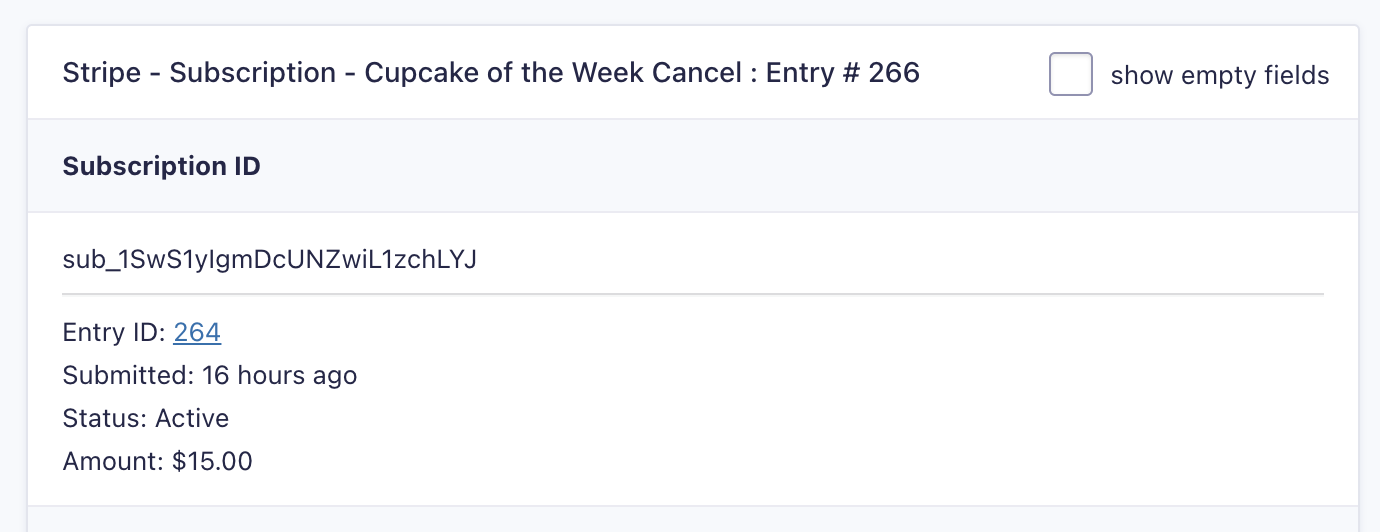
Using the Merge Tag
By default, the field merge tag outputs subscription details similar to the entry detail page shown above. If you need to output just the Subscription ID without the payment details, use the “value” modifier: {Subscription ID:1:value}
Connecting Entry IDs to Subscription IDs
Customers typically know their entry ID (for example, “Order #12345”) but not their Stripe subscription ID (format: sub_xxxxxxxxxxxx). If you need customers to initiate cancellation or management requests based on a subscription created via a separate Gravity Form, you’ll need to:
- Include a text field for them to provide the entry ID.
- Include a subscription ID field with visibility set to administrative.
- Use Form Connector with an Update Fields step using its ”Select a field containing the source entry ID’ setting to select the provided entry ID. In the field mapping setting, mapping the
{entry:transaction_id}into the subscription ID field.

This allows customers to submit their entry ID while the workflow retrieves the corresponding Stripe subscription ID automatically.
Stripe Extension Limitations
The Gravity Flow Stripe Extension has the following limitations that apply across all step types and field types.
Same-Site Validation Requirement
All Stripe transaction IDs, subscription IDs, and payment operations must originate from Gravity Forms on the same WordPress site. The following will not validate or process:
- Transactions from staging/production environments (different WordPress installations)
- Stripe purchases made through retail devices, mobile apps, or other systems
- Transactions from external Gravity Forms installations
- Subscriptions or payments created in different Stripe accounts
Single Payment Step Per Workflow
Only one Stripe feed and one Stripe payment step are supported per workflow. You cannot add multiple Payment Form (Checkout) steps or Capture Payment steps to the same workflow.
If your workflow requires multiple payments, consider these alternatives:
- Use separate forms and workflows – Create multiple forms, each with its own Stripe feed and workflow. Use Form Connector to pass data between workflows when needed
- Combine payments upfront – Calculate the total payment amount and collect it in a single transaction at the appropriate workflow step
- Use other payment add-ons – For workflows requiring multiple payment processors or payment types, combine Stripe with other Gravity Forms payment add-ons (each with its own feeds)
For more information on handling multiple payment feeds, see the Form Submission Step documentation.
Feed Configuration Requirement
All Stripe steps require a properly configured Stripe feed on the form before the step can function. The Stripe feed is automatically selected from your form configuration and cannot be manually selected in the step settings. See the Stripe feed configuration guide for setup instructions.