
Overview
This article addresses common workflow issues in Gravity Flow. Each scenario explains what happens, how to identify the problem, known causes, and how to resolve it.
Steps Are Skipped Due to No Assignees
What happens
A workflow step is skipped entirely, and the entry moves on to the next step without the expected assignee taking an action.
How to identify it
Review the entry timeline. The step will appear skipped, with a note indicating that no assignees were found. For approval steps specifically, the workflow bypasses to the next step in the list without any approve or reject action occurring.
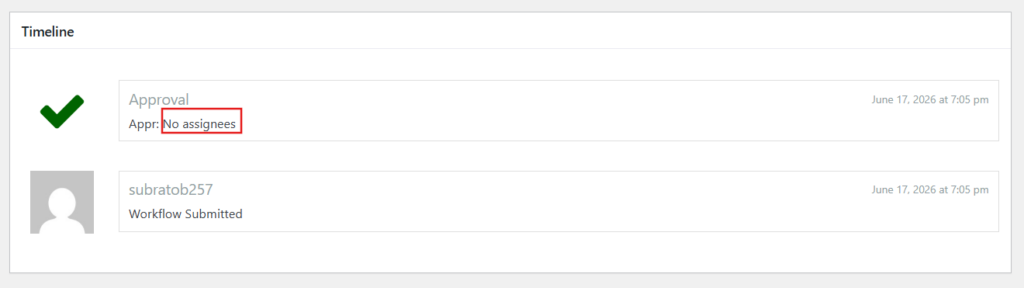
An Approval step with no assignee
An Approval step with no assignee will be approved automatically with a timeline note of ‘no assignees’
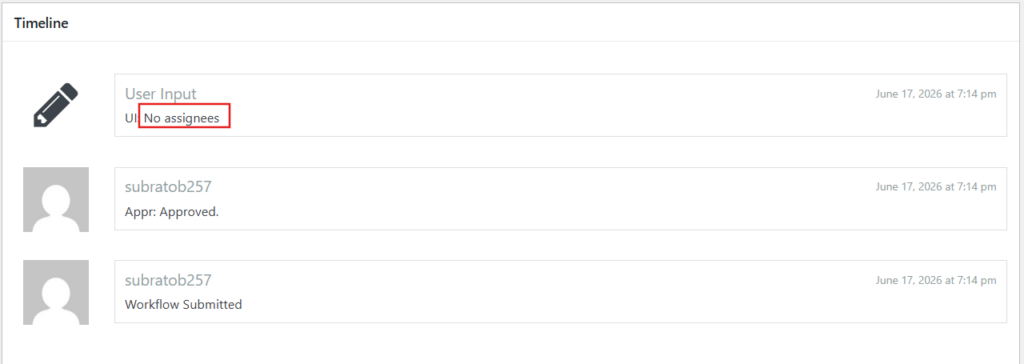
A User Input step with no assignee
A User Input step with no assignees will also show up in the time line as ‘no assignees’ and the workflow will move to the next step.
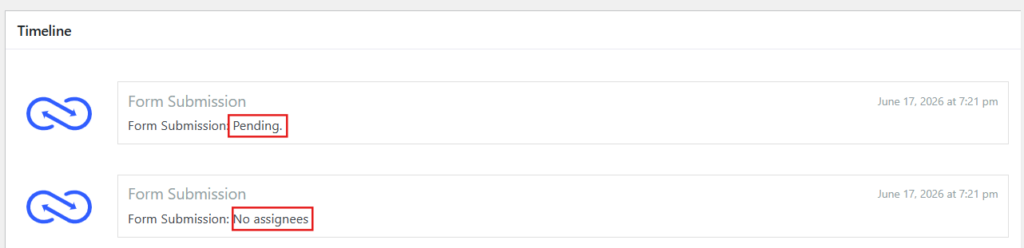
A Form Submission step with no assignee
A Form Submission step with no assignee will add two notes in the time line, no assignees and Pending
The user originally assigned to the step has since been deleted from the system, but the step was never updated to reflect this.
Resolution
When importing a new workflow from a separate environment (demo, local, or staging), review all steps to ensure the assigned users are correct.
Use the gravityflow_step_assignees filter to define a default fallback assignee, ensuring no step is ever left without someone to action it. The fallback assignee should ideally hold an Administrator role so they can direct the workflow forward.
Steps Are Auto-Approved or Auto-Rejected Due to Email Scanning
What happens
An approval step is completed automatically without any human action.
How to identify it
Check the entry timeline. The step will show as approved or rejected. When comparing the timing of the previous step, the action will occur almost immediately after it is completed (right after the notification is sent). This strongly suggests automated email scanning rather than a human response.
The issue tends to be intermittent or scoped to specific users, a particular organization, or an email domain. This pattern points to a mail security system rather than a configuration error.
Known causes
Certain email systems automatically follow or process URLs in incoming emails, including one-click approval or rejection links. This is especially likely to occur when an assignee is email-based, as these automated link visits do not use a user login path.
The order of action links in the notification email may influence which action (approve vs. reject) is auto-triggered.
Resolution
Remove one-click approval links in email in favor of {workflow_entry_link} that require the user to click the approve or reject button within the entry details screen.
Ask the email domain provider if they can bypass link pre-fetching or click-follow-through from specific sources or for specific email addresses to effectively whitelist your system.
Expiration Settings Causing Workflow Loops
What happens
A workflow appears to loop without user interaction, cycling through steps at a consistent or frequent interval.
How to identify it
Open the entry timeline and look for a pattern of steps repeating at regular intervals or on a consistent schedule. The loop may affect a single entry frequently or a broad set of entries on a recurring basis. The timing between steps will follow a predictable cadence determined by the expiration delay values configured for each step.
Known causes
Expiration settings across two or more steps are configured to create a circular path. For example, Step A expires after 15 minutes and auto-approves; its next step sends a notification, which then routes to another step that expires after 3 days and points back to Step A.
Outgoing webhook steps and notification steps tied to an approval step with a short expiration window can compound the issue, resulting in users being spammed with repeated notifications.
Resolution
Review the workflow step settings or the Workflow Flowchart (if active) to identify any circular paths.
Evaluate all expiration settings and ensure that no combination of expiration and next-step configurations results in a closed loop.
Avoid pairing short expiration windows with multiple non-interactive steps in any looping path.
Unintentional Infinite Loop Due to Step Configuration
What happens
A workflow enters a true infinite loop, executing a large number of steps in rapid succession (sometimes in fractions of a second) with no mechanism to break the cycle.
How to identify it
The entry timeline shows a very large number of repetitive steps executing in extremely rapid succession. Unlike the expiration loop scenario, this is not scheduled. It runs continuously and uncontrolled.
Known causes
Step settings are configured in a genuinely circular path with no valid exit condition.
A common trigger is multiple outgoing webhook steps iterating through a list or a multi-user field, where there is no logic to remove or decrement users from that field as they are actioned. This causes the loop to repeat indefinitely over the same set of records.
Resolution
Cancel the workflow immediately to stop the loop from continuing to execute.
Review all step settings and any custom code involved in the loop to identify and correct the circular configuration. Consider adding a “max iterations” counter field so custom code can loop between two automated steps.
Ensure any iteration over a list or multi-user field includes a mechanism to remove or mark entries as processed so the loop has a valid termination condition.
PHP Failures Causing a Stuck Pending Workflow
What happens
A workflow stalls in a pending state with no step currently active or assigned, leaving the entry apparently frozen.
How to identify it
The entry details screen shows a workflow status of Pending, but no step is currently assigned or awaiting action. The issue may occur during automated or manually triggered steps.
Known causes
Custom PHP code hooked into Gravity Flow or Gravity Forms hooks is throwing an error or failing silently during step execution.
Plugin conflicts with other active WordPress plugins may be interfering with step processing.
Resolution
Enable the WordPress debug log and turn on Gravity Forms and Gravity Flow logging, then replicate the behavior that preceded the stuck state to capture the error.
Review the logs to identify the source of the failure.
If the issue can be reproduced on a clean WordPress install with only Gravity Forms, Gravity Flow, and their official add-ons active, this may indicate a bug. Contact the support team.
If custom code is identified as the cause, the resolution will involve PHP or JavaScript code changes to address the failing hook or integration.
Inactive Steps Causing Unexpected Workflow Paths
What happens
Marking a step as inactive mid-workflow causes entries to follow unintended paths, bypassing the expected next step and routing through fallback logic instead.
How to identify it
An entry that should have routed to a specific step instead skips it and moves to the next available step in the list with no clear indication in the timeline of why. The issue may not be immediately obvious. The main diagnostic signal is the presence of inactive steps referenced in other steps’ next step settings.
Known causes
A step is marked inactive while it is still referenced in the next step settings of one or more other steps.
The expected behavior is that the workflow falls back to the next step in the list. However, this fallback can create unintended routing patterns depending on how subsequent steps are configured.
Resolution
Before marking any step inactive, review all other step settings to ensure it is not referenced in any next-step configurations.
Update any referencing steps to point to the correct replacement next step before deactivating.