
Introduction
The Refund Payment step refunds a payment made either in the current entry or in a different entry.
Note: If you’re refunding a subscription payment, use the Cancel Subscription Step before the Refund Payment step to prevent future billing. This ensures the customer is not charged again while the refund is being processed.
Refund Payment Step Settings
Refer to Common Step Settings for additional settings you will see on the step edit screen in addition to the following:
| Step Setting | Description |
|---|---|
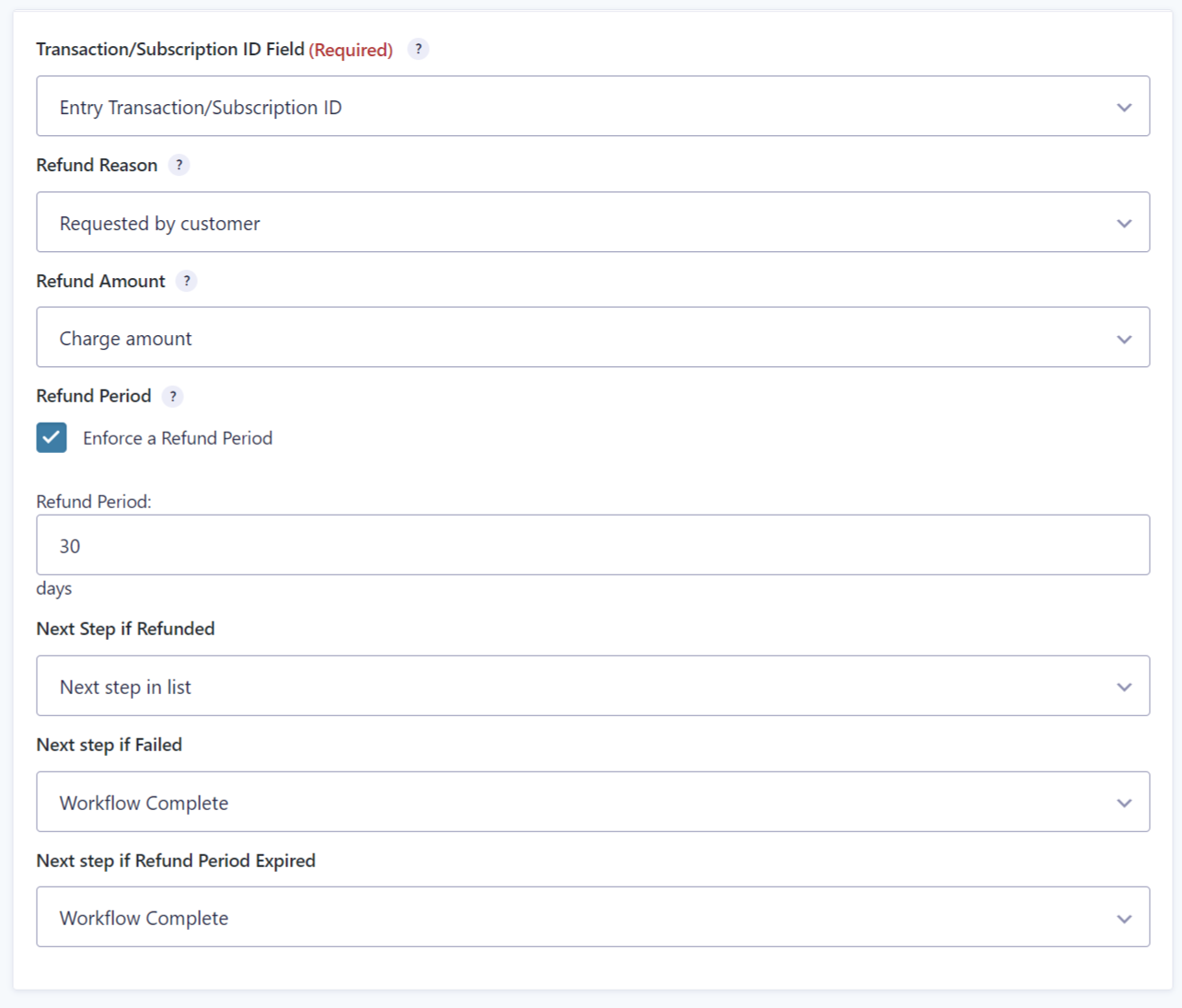
| Transaction/Subscription ID Field | Select which transaction to refund: • Entry Transaction/Subscription ID – Refunds the payment from the current entry • Field containing Transaction ID – Refunds a payment from a different entry using a Transaction ID field or Subscription ID field. The dropdown shows all Hidden fields, Text fields, Subscription ID fields, and Transaction ID fields on the form. The customer must provide this ID, or you can retrieve it using the {entry:transaction_id} merge tag from the original entry |
| Refund Reason | The reason for the refund. Options: “Requested by customer”, “Duplicate”, and “Fraudulent”. |
| Refund Amount | Choose to refund the full amount charged to the customer, or select a number field on the form that contains a partial refund amount. |
| Refund Period | Optional time limit (in days) for processing refunds. When set, refunds will only be processed if the payment was made within this period. Leave blank to allow refunds at any time. See Refund Period Example below |
Note: Payment transaction IDs use the format pi_xxxxxxxxxxxx and subscription IDs use the format sub_xxxxxxxxxxxx
Next Step Settings
Next Step Settings
| Next Step | Description |
|---|---|
| Refunded | The next step in the workflow if the payment was refunded successfully. For example, you could select a notification step to email the customer and an administrator confirming the refund |
| Failed | The next step in the workflow if the payment was not refunded successfully. Common reasons for failure include: • Payment was not previously captured • Payment was already refunded • The transaction ID is invalid or from a different site • The refund period has expired • The payment gateway API returned an error • Network connectivity issues You could select a notification step to inform the customer and administrator that the refund failed |
| Refund Period Expired | The next step in the workflow if the refund period has expired and the refund was not processed |
Examples
Refund Period
If you have a 30-day refund guarantee, set the refund period to 30. The refund will only be processed if the payment was made within the 30-day limit. If the step runs for a payment made before the 30-day period, the step status will be “refund period expired”.
Refund and Cancel Workflow
When refunding a subscription payment, the recommended workflow order is:
- Cancel Subscription step (Stops future billing)
- Refund Payment step (Returns the payment to the customer)
This prevents the situation where a customer receives a refund but continues to be charged for future subscription periods.
Verifying Refund Status in Stripe
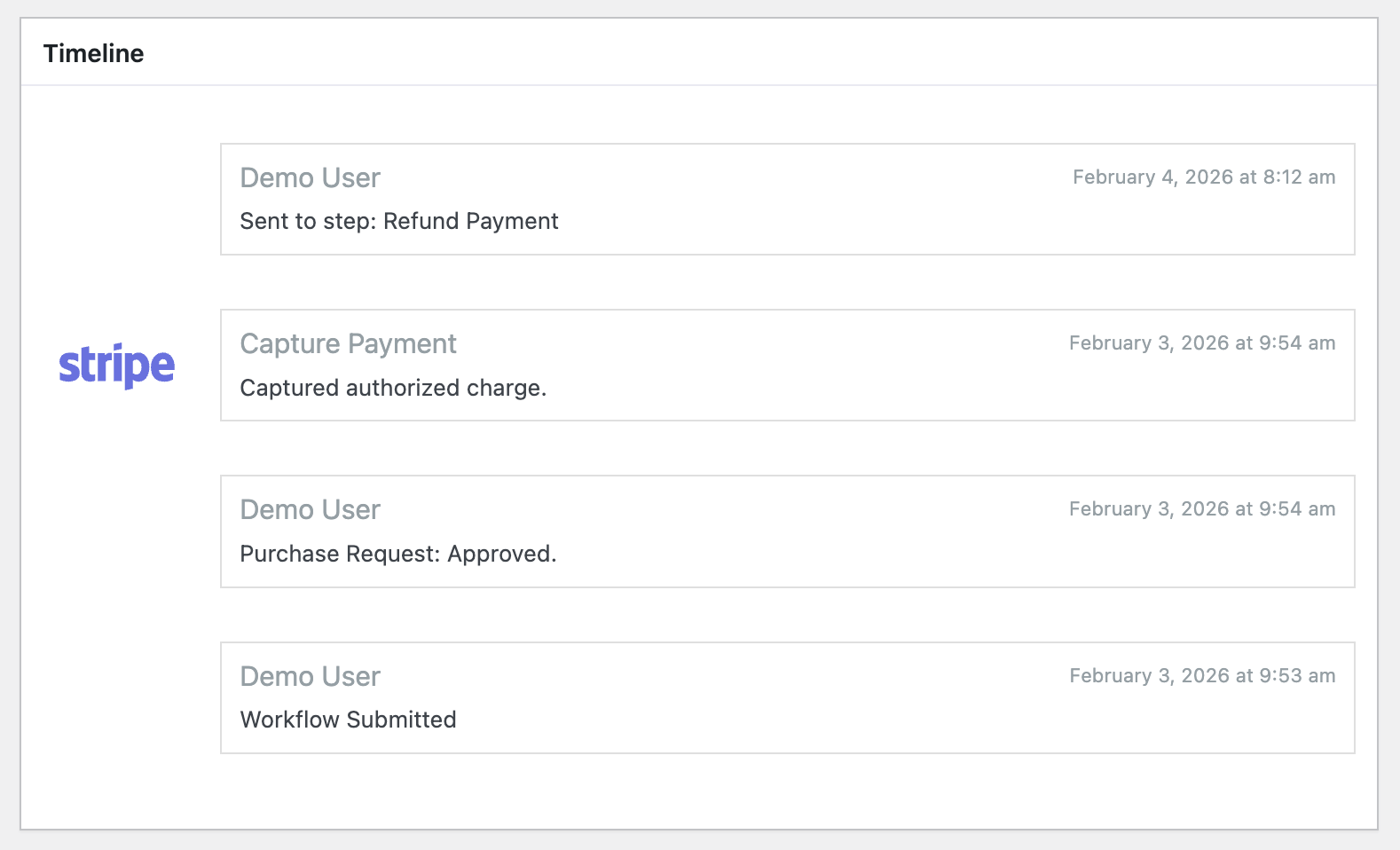
To verify that a refund was processed successfully in your Stripe Dashboard, navigate to the payment or subscription and check the refund timeline. Refer to the Stripe official documentation for more information. To verify that a refund was processed successfully in your Stripe Dashboard. Refer to the for more information.
Stripe Extension Limitations
The Gravity Flow Stripe Extension has the following limitations that apply across all step types and field types.
Same-Site Validation Requirement
All Stripe transaction IDs, subscription IDs, and payment operations must originate from Gravity Forms on the same WordPress site. The following will not validate or process:
- Transactions from staging/production environments (different WordPress installations)
- Stripe purchases made through retail devices, mobile apps, or other systems
- Transactions from external Gravity Forms installations
- Subscriptions or payments created in different Stripe accounts
Single Payment Step Per Workflow
Only one Stripe feed and one Stripe payment step are supported per workflow. You cannot add multiple Payment Form (Checkout) steps or Capture Payment steps to the same workflow.
If your workflow requires multiple payments, consider these alternatives:
- Use separate forms and workflows – Create multiple forms, each with its own Stripe feed and workflow. Use Form Connector to pass data between workflows when needed
- Combine payments upfront – Calculate the total payment amount and collect it in a single transaction at the appropriate workflow step
- Use other payment add-ons – For workflows requiring multiple payment processors or payment types, combine Stripe with other Gravity Forms payment add-ons (each with its own feeds)
For more information on handling multiple payment feeds, see the Form Submission Step documentation.
Feed Configuration Requirement
All Stripe steps require a properly configured Stripe feed on the form before the step can function. The Stripe feed is automatically selected from your form configuration and cannot be manually selected in the step settings. See the Stripe feed configuration guide for setup instructions.