
Overview
The Dropbox Add-On for Gravity Forms allows you to connect your forms with your Dropbox account to upload and organize files submitted through your WordPress forms automatically.
As one of the industry leaders in cloud file storage, Dropbox lets you securely store, organize, and access uploaded files anytime. With robust security and ease of use, you can rest assured that all form uploads are stored safely in your connected Dropbox folders.
Gravity Flow Integration
When a workflow includes a Dropbox step, Gravity Flow ensures that the standard post-submission Dropbox feed does not execute independently of the workflow. This gives you complete control over when file uploads and folder actions occur within your workflow sequence.
Creating a Dropbox Workflow Step
To add a Dropbox step to the workflow:
- From the Form Editor screen, navigate to Settings → Workflow.
- Select Add New Step and set a Name for the step.
- Choose the Dropbox step as the Step Type.
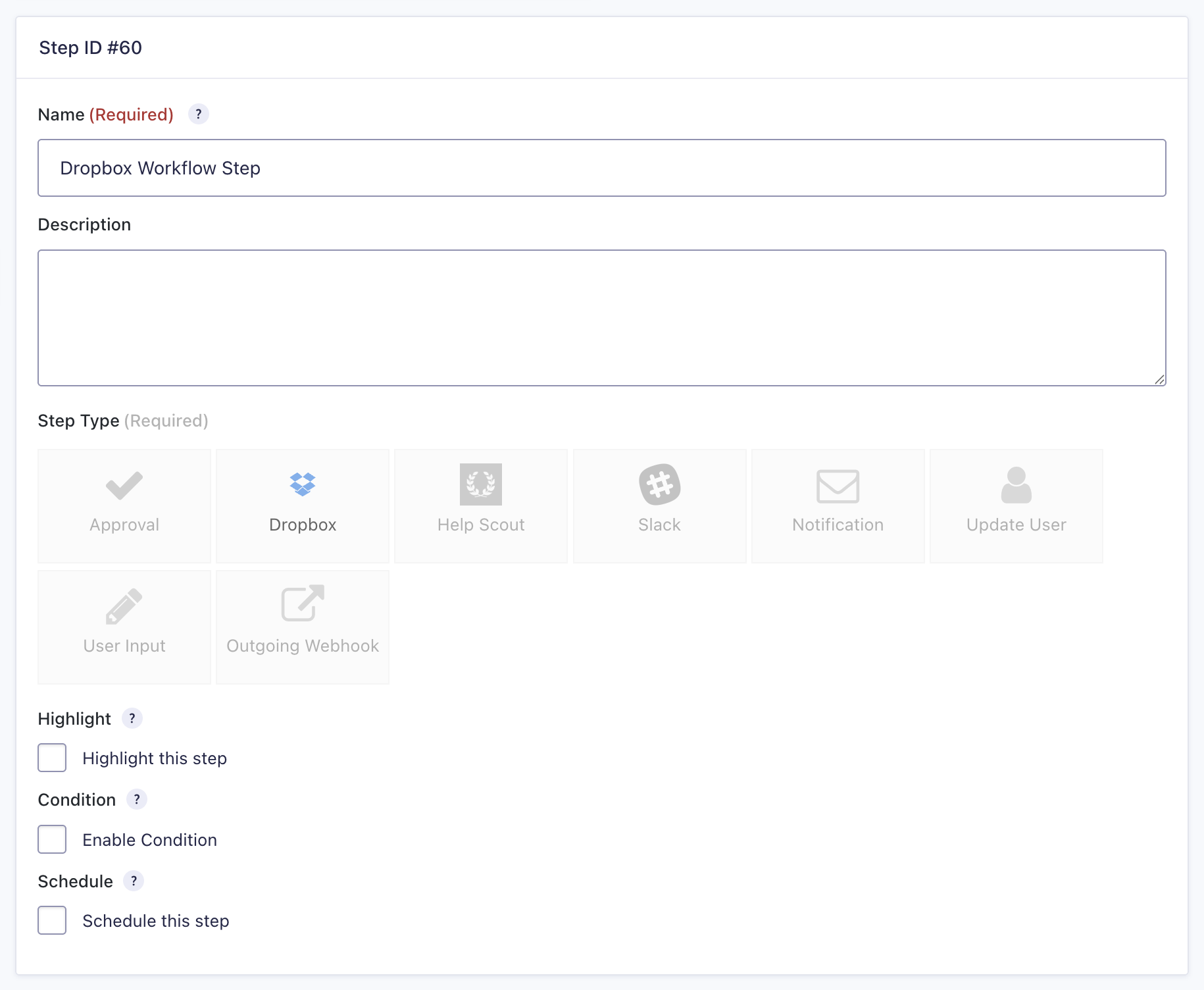
- Select a Dropbox Feed created using the Dropbox Add-On.
- Click Update Step Settings to save the step.
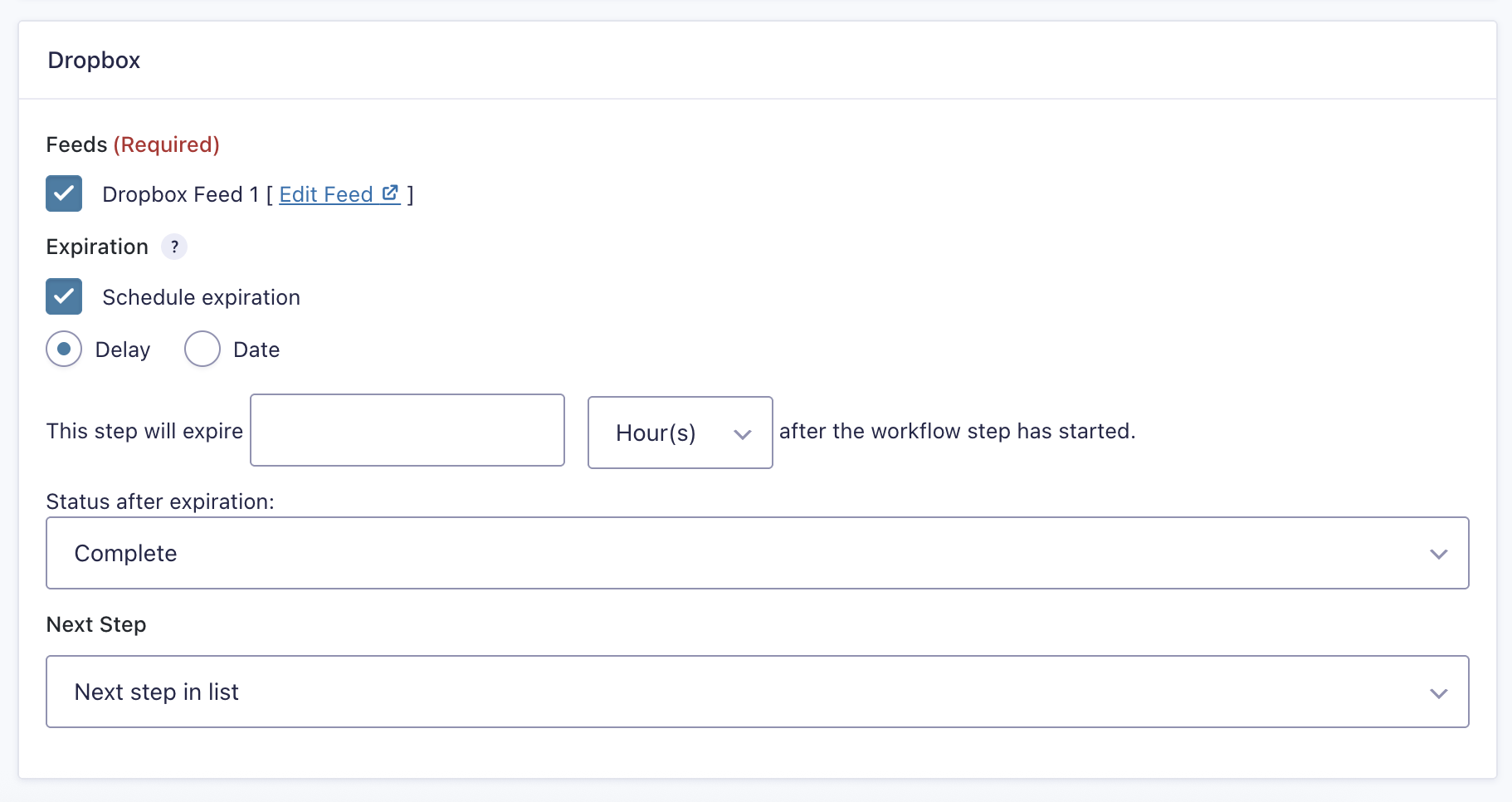
Dropbox Step Settings Reference
| Setting | Description |
|---|---|
| Name | Defines the workflow step name used to identify it within the workflow. Required |
| Description | Provides a short description of what the step does. |
| Step Type | Defines this step as a Dropbox step. Required |
| Highlight | Highlight this step to visually emphasize it in the workflow. |
| Condition | Enables a condition to determine whether the step will run. |
| Schedule | Delays execution of the step based on a configured schedule. |
| Dropbox Feed | Selects which Dropbox feed to execute for this step. Required |
| Schedule Expiration | Enable the expiration setting to allow this step to expire. Once expired, the entry will automatically proceed to the step configured in the Next Step setting(s) below. |
| Next Step | Defines the next step in the workflow sequence. |