
Overview
The Mailchimp Add-On for Gravity Forms allows you to connect your forms with your Mailchimp account to send contact and subscriber data automatically. See the Mailchimp Add-On Documentation for setup instructions.
Gravity Flow Integration
When a workflow includes a Mailchimp step, Gravity Flow ensures that the standard post-submission Mailchimp feed will not execute independently of the workflow. This provides complete control over when Mailchimp actions are performed within the workflow.
Creating a Mailchimp Workflow Step
To add a Mailchimp step to the workflow:
- From the Form Editor screen, go to Settings → Workflow.
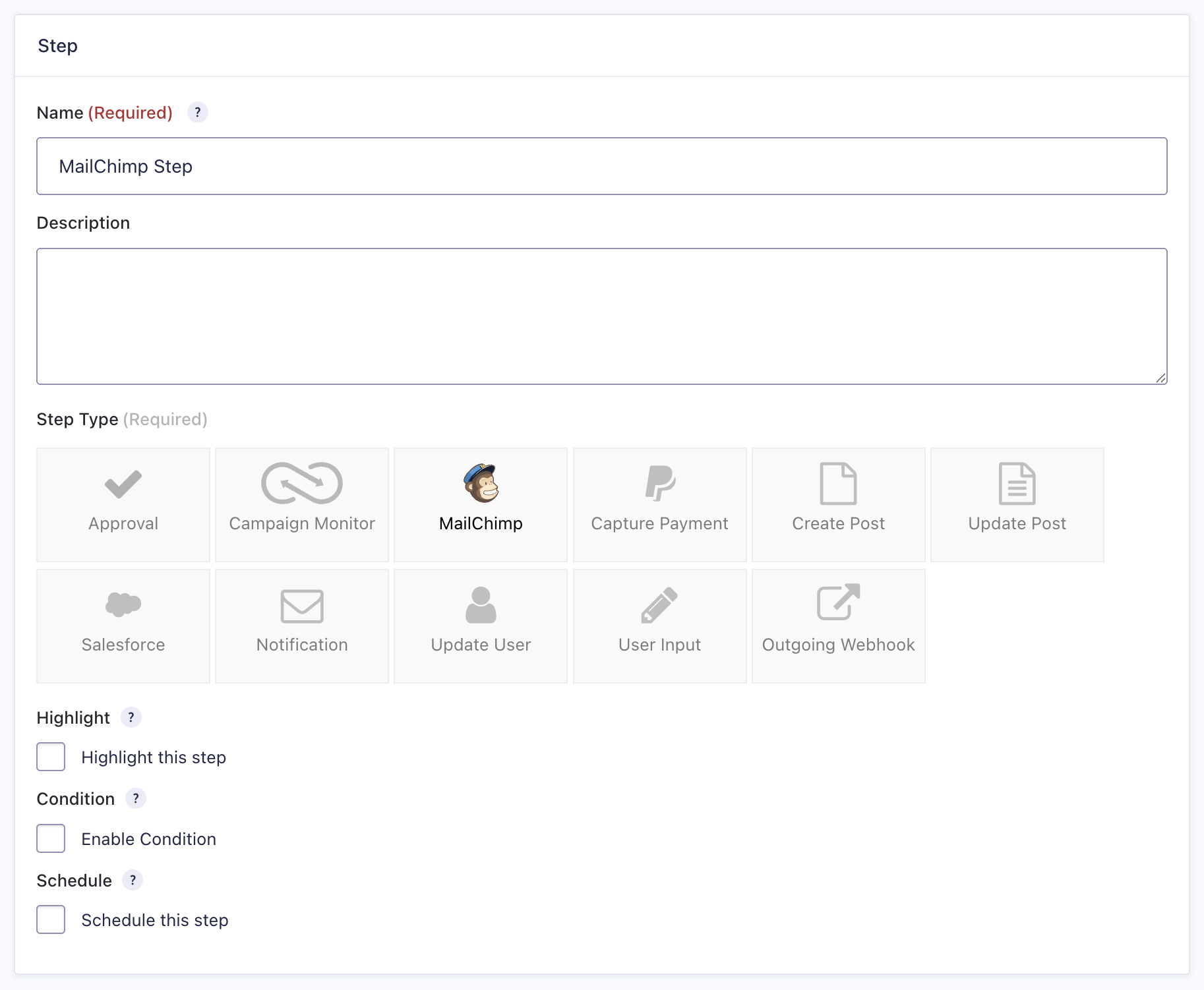
- Select Add New Step and enter a Name for the step.
- Choose Mailchimp as the Step Type.
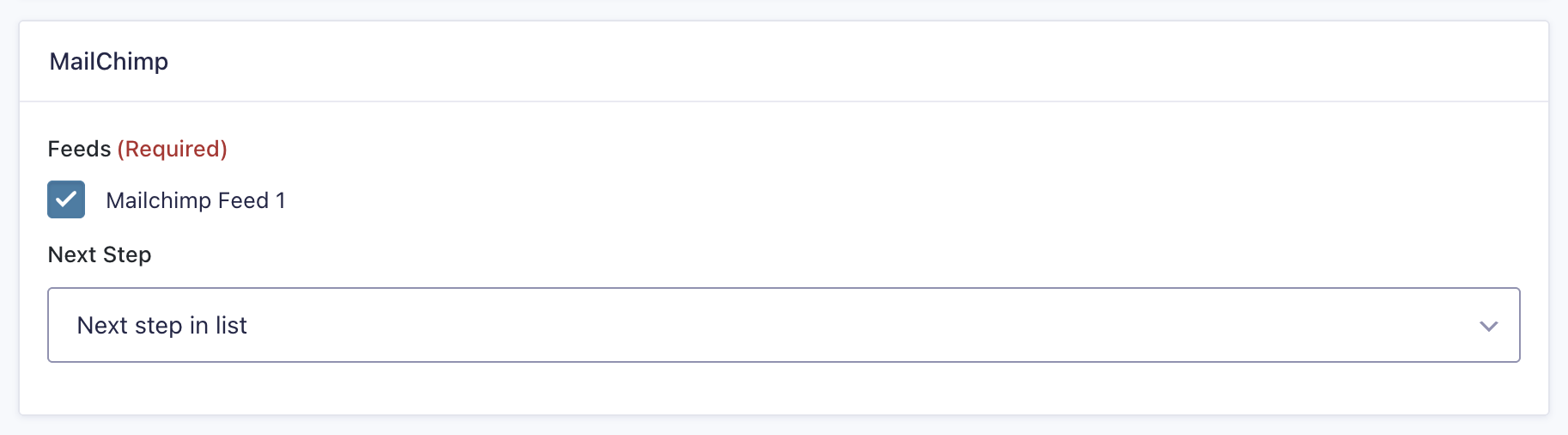
- Select a Mailchimp Feed that was created using the Mailchimp Add-On.
- Click Update Step Settings to save the step.
Mailchimp Step Settings Reference
| Setting | Description |
|---|---|
| Name | Defines the workflow step name used to identify it within the workflow. Required |
| Description | Provides a short description of what the step does. |
| Step Type | Defines this step as a Mailchimp step. Required |
| Highlight | Highlight this step to emphasize it in the workflow visually. |
| Condition | Enables a condition to determine whether the step will run. |
| Schedule | Configures when the step should run after the workflow starts. |
| Mailchimp Feed | Selects which Mailchimp feed to execute for this step. Required |
| Next Step | Defines the next step in the workflow sequence. |