
Summary
If the Step Condition does not preclude the step from starting, the Next Step setting will determine where the entry should proceed upon completion. This setting may vary depending on the step type covered in the respective step settings documentation.
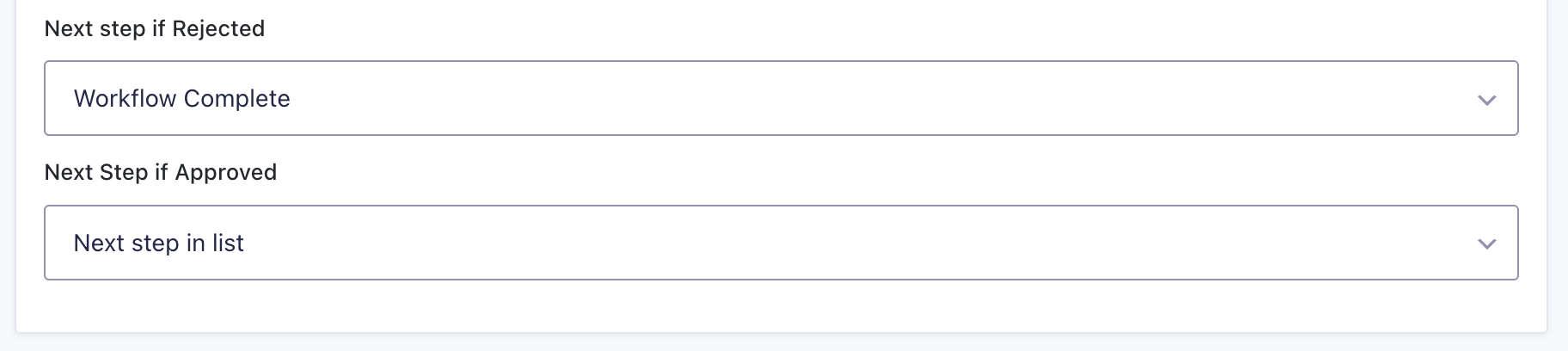
Options
| Option | Description |
|---|---|
| Next step in list | Proceeds to the next step as defined in the workflow settings screen. This is beneficial because it automatically respects any changes you make to the step order (via drag-and-drop) without requiring updates to this setting. |
| Workflow Complete | Ends the workflow immediately, regardless of the step’s position in the list. This is useful for terminating branches that do not require any further processing. |
| Send to a specific step | Allows you to manually select a specific step from a list (excluding the current step). This enables advanced control, such as creating loops or exiting loops when used with conditional logic. Useful for building complex, non-linear workflows. |
Hopefully, you can see the simplicity of each individual step setting and the powerful flexibility that can come from combining the common step settings we have covered in this lesson. After you have created your first few steps and workflows, we are confident you will find the setup process very efficient.
These common settings can be combined with the step-specific ones, which the other documentation in this category covers, to produce some incredible dynamic processes.