
Overview
The Partial Entries Add-On allows saving incomplete form submissions as partial entries. Partial Entries allows you to view any partial form entries within your WordPress dashboard. Here you can access the data of anyone who abandoned a form as well as gain insight into which forms may be under-performing and where your users are dropping off, enabling you to future-proof your forms and increase conversions over time. Refer to the Partial Entries Add-On Documentation for more information.
Gravity Flow Integration
Gravity Flow provides two primary interactions with the Partial Entries Add-On: triggering workflows when partial entries are created, and managing workflow progression when those entries are later completed. This enables automation for outreach and recovery of abandoned form submissions.
When the integration is enabled, workflows will automatically trigger upon the creation of a partial entry. See the Partial Entries Add-On documentation for setup instructions. You can use the workflow to send reminder emails or follow-up actions when a form is abandoned.
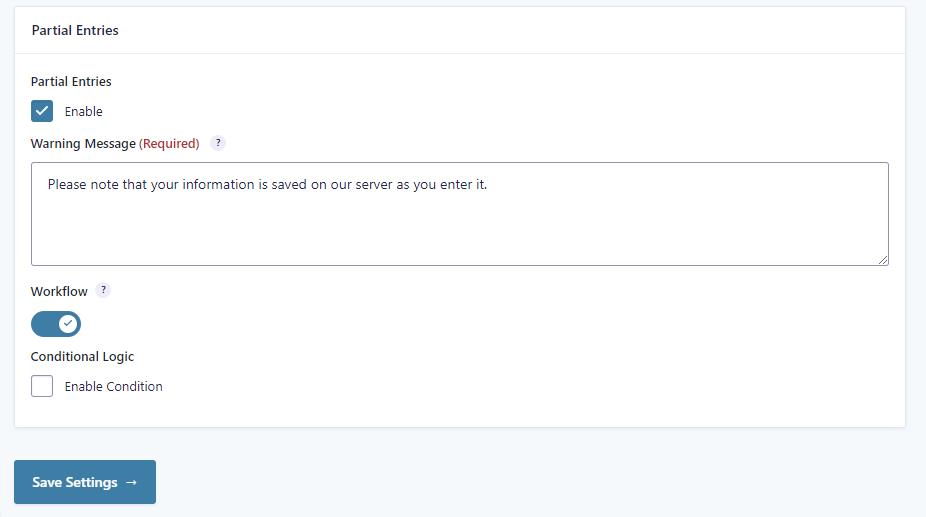
This will trigger the workflow when a partial entry is created.
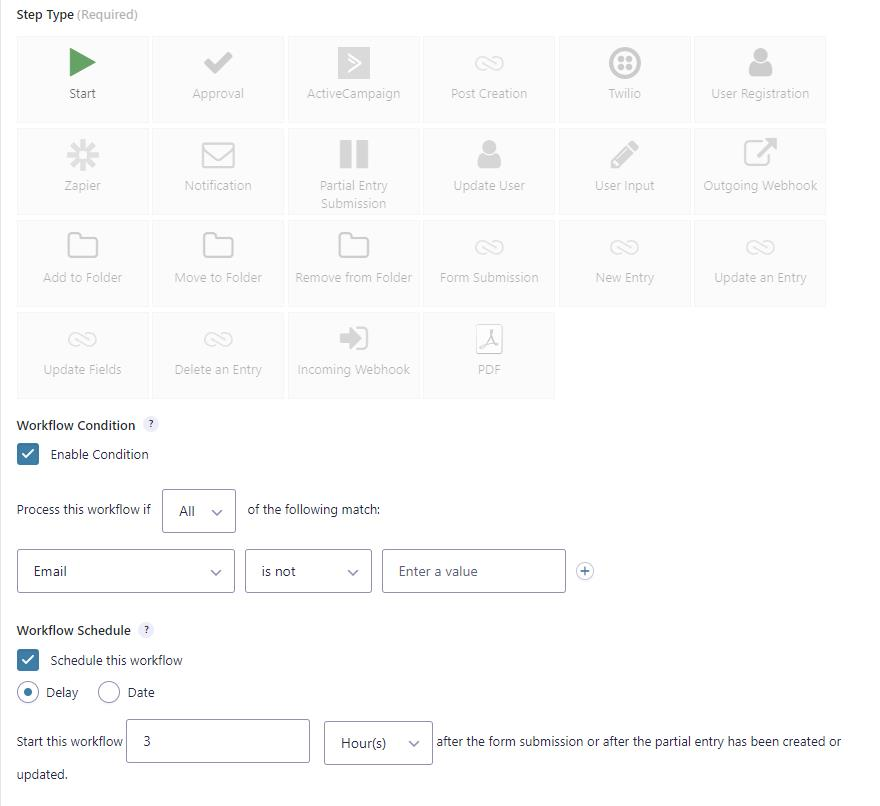
Delay the Start step
It is recommended to delay workflow start until a reasonable amount of time has passed. Use the Schedule setting on the Start step to delay the workflow. For example, you can prevent the workflow from starting until three hours after the last update of the partial entry, and ensure it only starts if the email address field has been entered.
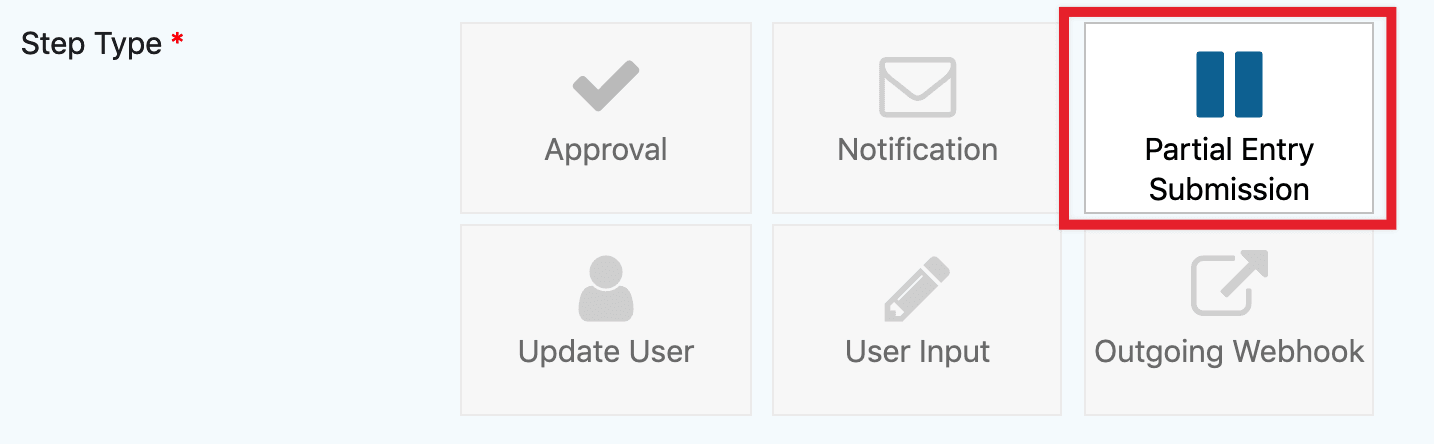
Partial Entry Submission Step
When the workflow setting is enabled for the Partial Entries Add-On, a new step type called Partial Entry Submission becomes available. This step waits for the final submission of the form.
Assign the step to the email field if you want to send an email to the address entered in the form. Use the assignee email to send a link that allows users to resume their form submission.

The {workflow_resume_partial_entry_link} and {workflow_resume_partial_entry_url} merge tags will generate a link to the form. The link will direct the user to the page containing the form and prepopulate the fields with the values they previously entered.
Merge Tags for Partial Entries
| merge tag | Description | Example |
|---|---|---|
| page_id | Displays partial entry from the specified page id | Example: {workflow_resume_partial_entry_link:page_id=”2″} Note that this will take precedence over the Submission Page step setting. |
| text | Displays the text to display for the partial entry | Example: {workflow_resume_partial_entry_link:text=”Continue your request”} |
| token | Enable or disable token access. It is false by default. | |
| assignee | Reassign the partial entry to other users | Example: {workflow_resume_partial_entry_link:assignee=”user_id|42″} or {workflow_resume_partial_entry_link:assignee=”role|developer”} |
| step | Display the partial entry for the specified step | Example: {workflow_resume_partial_entry_link:step=”45″} |
Notes
You can put a space between multiple modifiers if needed.
{workflow_resume_partial_entry_link:page_id=”87″ text=”Continue your request”}
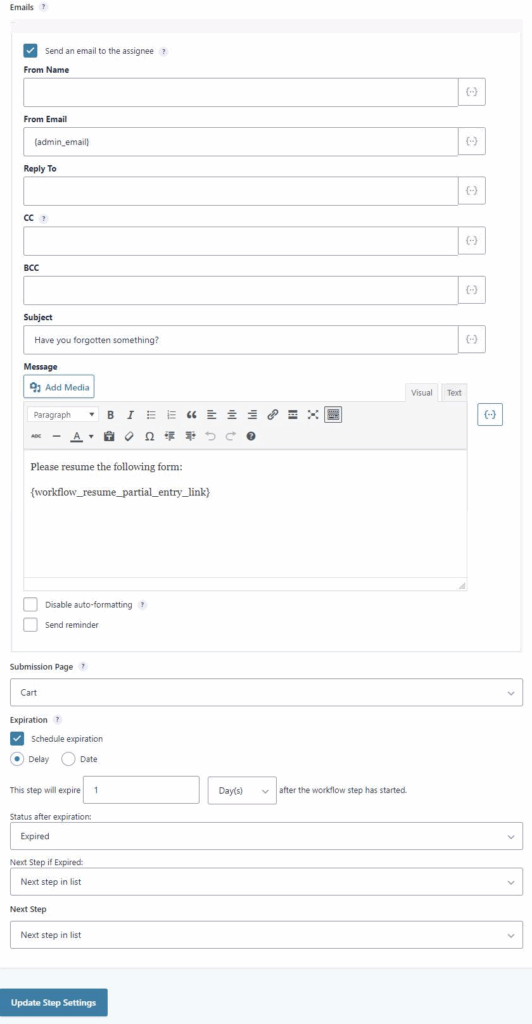
If you’d like to send another, different email the next day for example, then define the expiration settings and add another Partial Entry Submission step next in the list.
Note: The Partial Entries integration is not currently compatible with the Save and Continue feature of Gravity Forms. Partial Entries won’t have a value for the created_by as the entry is saved via a separate background process ( heartbeat) in which the user is not logged in. The value created_by will be set when the partial entry is updated when a multi-page form is paged using the next or previous buttons or when it is submitted.