
Summary
The Schedule setting allows you to delay when a step is triggered. This is useful when steps run too closely together or when actions must occur on a specific date. It’s commonly used for content dripping, such as sending a series of emails over several days.
A customer has signed up for a course that should be delivered by email every day for a week. You’d create seven steps, each with a one-day delay.
Steps can be scheduled to begin after a specified delay in minutes, hours, days, or weeks.
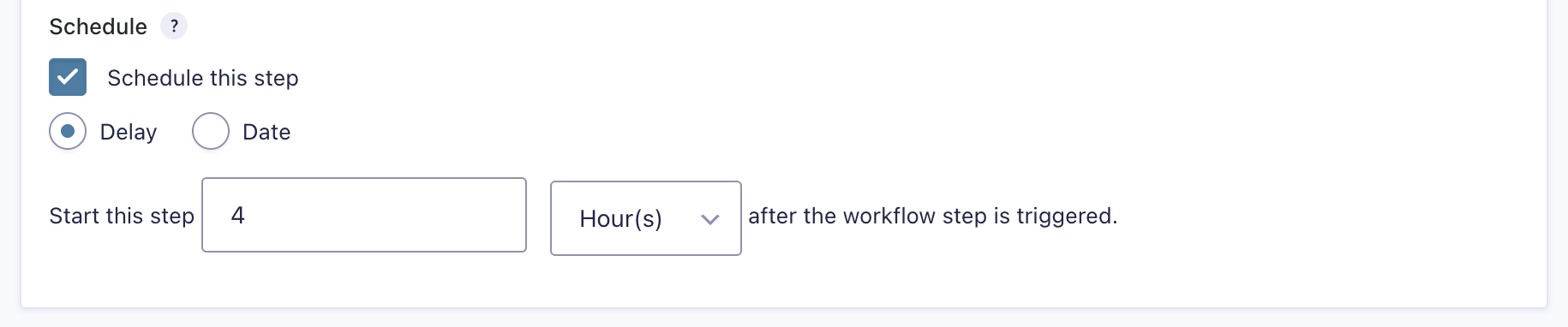
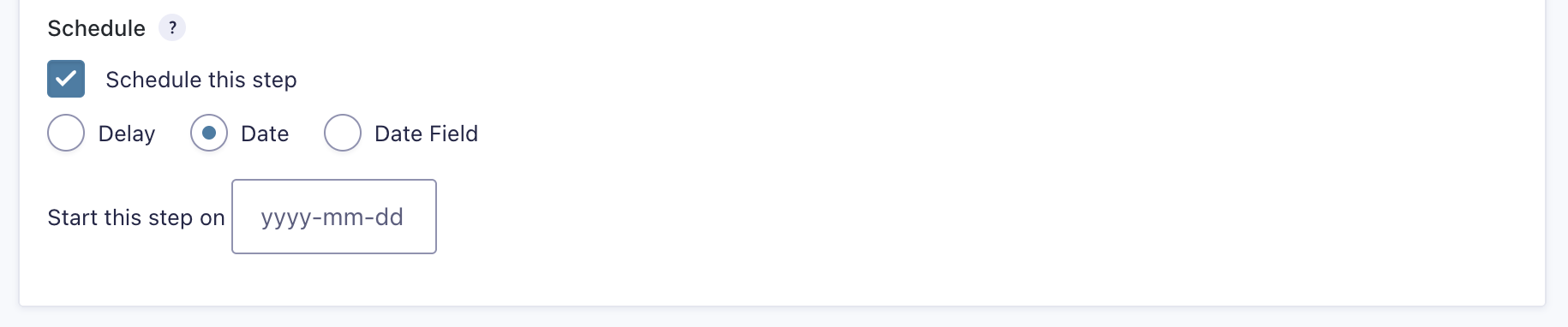
Steps can also be scheduled to begin on a specific date, for example, for an event.
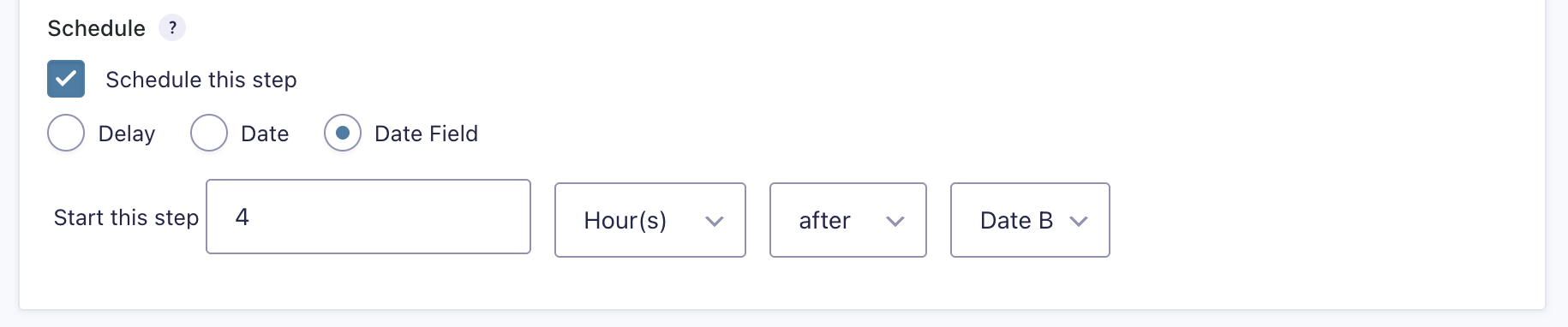
Finally, if your form contains any date fields, steps can be scheduled to start on, before, or after the date in a date field.
About Gravity Flow Scheduled Events
Gravity Flow uses WordPress’s WP-Cron system to schedule time-based tasks, including the gravityflow_cron event, which runs every 15 minutes to process queued workflow steps.
Note: Since WP-Cron relies on site visits to trigger scheduled events, tasks may be delayed during periods of low traffic. For example, if a workflow step is due at 4:00 AM but no one visits the site until 8:00 AM, it won’t run until then. Additionally, running scheduled tasks too frequently can affect site performance. For more information, see the Troubleshooting Scheduled Events guide.