
Summary
The Step Type is the other required setting, along with the Step Name. The list of available step types will depend on what plugins are installed and active on your website. When creating a new step, clicking the Step Type button will cause the Step Settings page to reload with additional settings fields for you to define.
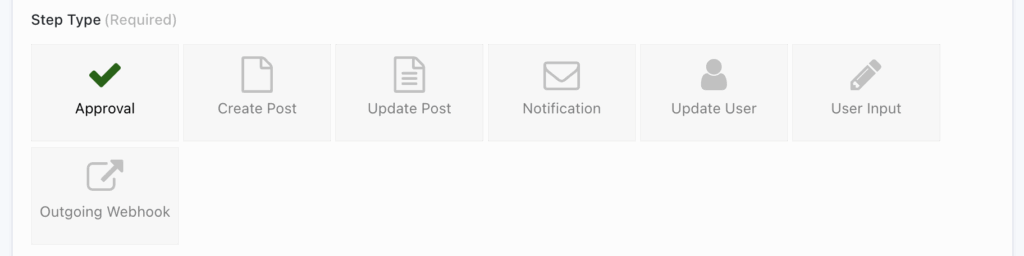
You can click through multiple step types to see what additional settings are required, but once you successfully save the step, the type cannot be changed. When editing an existing step, the step type will already be highlighted, as shown in the screenshot below, where the Approval step type is highlighted.
Where the Step Type Appears
| Location | Description |
|---|---|
| Workflow Steps List | Displayed when editing the form in the Workflow tab. |
| Entry Detail Screen | Shown in the Workflow details box (if current step) or in the timeline (if completed or sent manually). |
| Inbox / Status Pages | Appears as a default column in admin pages (Workflow > Inbox / Status) and in front-end pages created via shortcode or block. |
| Entry Exports | Included as a column for each step’s status in exports generated via Forms > Import/Export. |