
Overview
The Trello Add-On for Gravity Forms allows you to integrate your forms with Trello to automatically create cards, assign members, apply labels, and organize tasks on your Trello boards.
Trello is a web-based, kanban-style project management tool that helps teams collaborate visually. With customizable boards, lists, and cards, Trello makes it easy to track what’s in progress, who’s responsible, and where every task sits in the workflow.
Gravity Flow Integration
When a workflow includes a Trello step, Gravity Flow ensures that the standard post-submission Trello feed does not execute independently. This gives you full control over when Trello actions—such as card creation or updates—occur during the workflow.
Creating a Trello Workflow Step
To add a Trello step to the workflow:
- From the Form Editor screen, navigate to Settings → Workflow.
- Select Add New Step and set a Name for the step.
- Choose the Trello step as the Step Type.
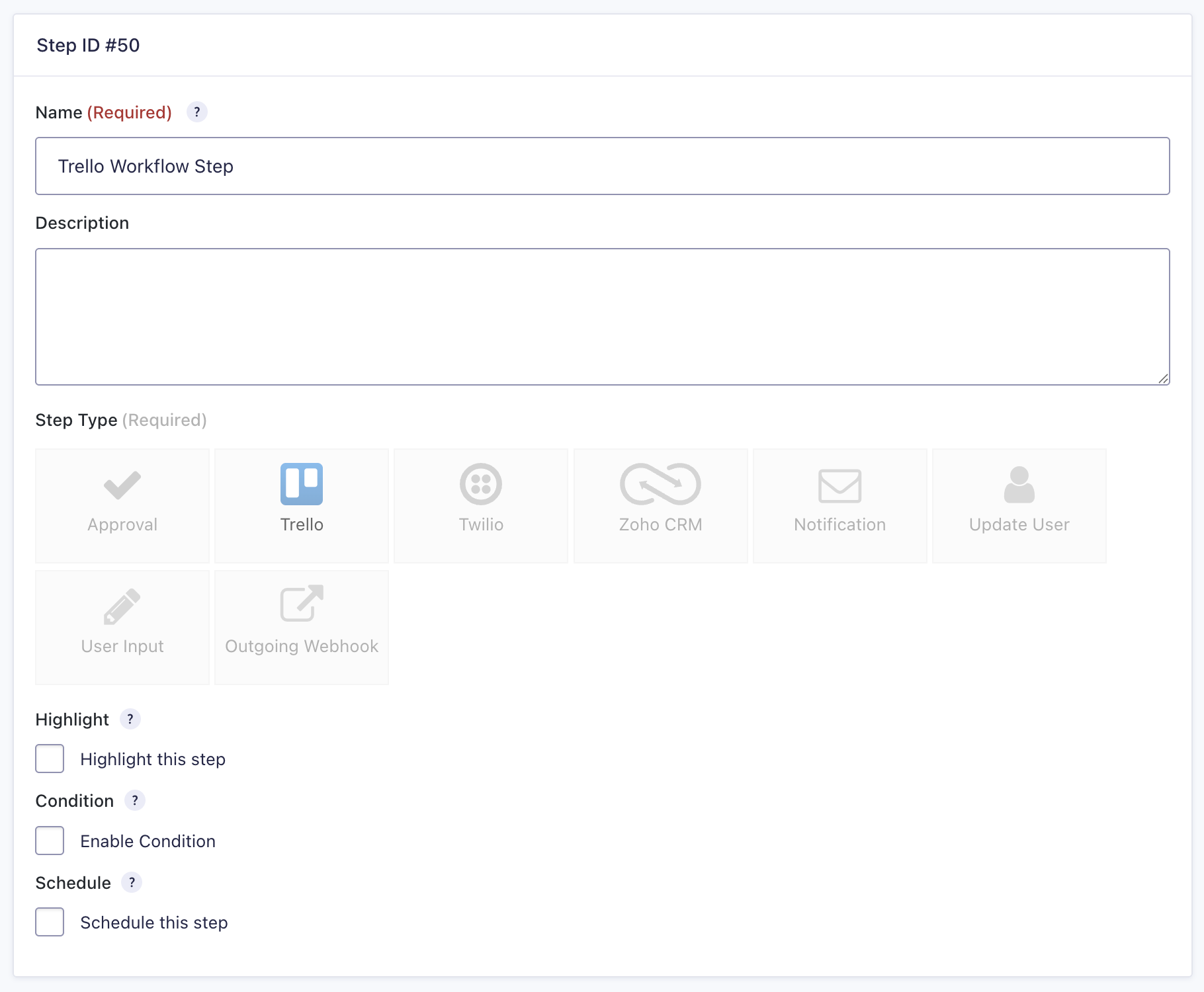
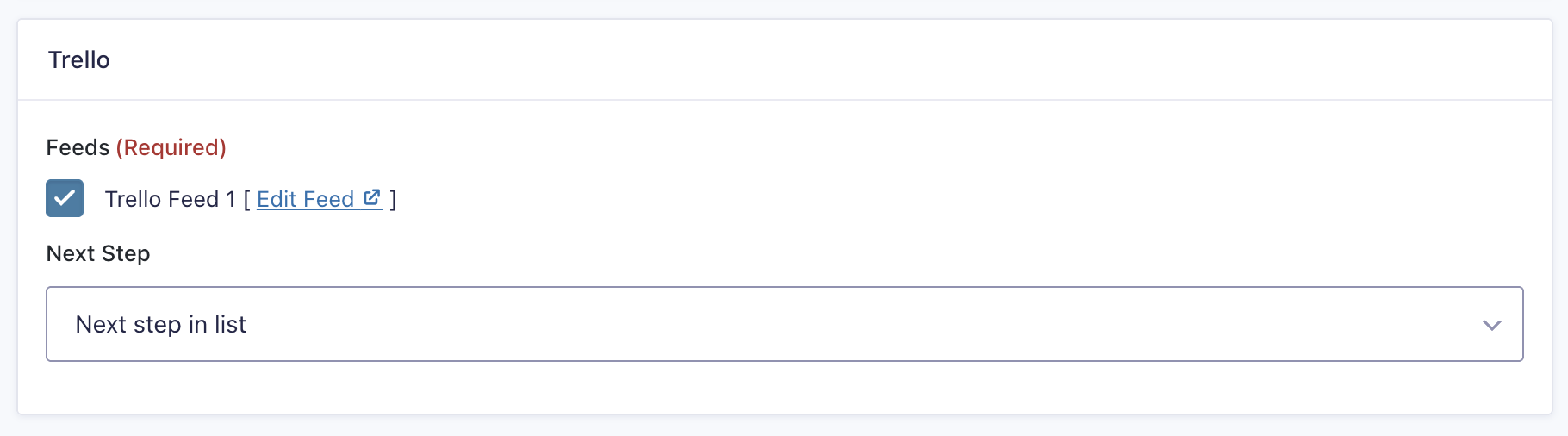
- Select a Trello Feed created using the Trello Add-On.
- Click Update Step Settings to save the step.
Trello Step Settings Reference
| Setting | Description |
|---|---|
| Name | Defines the workflow step name used to identify it within the workflow. Required |
| Description | Provides a short description of what the step does. |
| Step Type | Defines this step as a Trello step. Required |
| Highlight | Highlights this step to visually emphasize it in the workflow. |
| Condition | Enables a condition to determine whether the step will run. |
| Schedule | Delays execution of the step based on a configured schedule. |
| Trello Feed | Selects which Trello feed to execute for this step. Required |
| Next Step | Defines the next step in the workflow sequence. |