
Summary
The Expiration setting is only available for Approval and User Input steps. These steps can be configured to have an Expiration Date after a specified delay or on a specific calendar date.
The Expiration Setting in the User Input Step

The Status after expiration setting allows you to define the step’s status after the expiration period has elapsed. If “Expired” is selected, a “Next step if Expired” setting appears, allowing you to route the workflow to a different step. This is useful for implementing escalation processes that need to happen if action is not taken within a defined period.

The Expiration Setting in the Approval Step
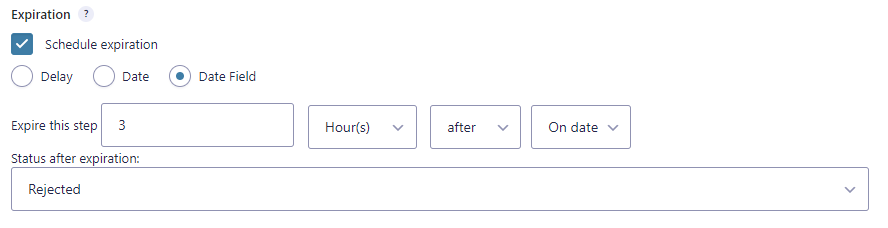
This setting allows for the status to be changed to Rejected or Approved once the step has expired.

If the form has a date field, the date field option will be available. This allows steps to expire before or after the date specified in the value of a date field.
How Gravity Flow Handles Scheduled Events
Gravity Flow uses WordPress’s WP-Cron system to schedule time-based tasks, including the gravityflow_cron event, which runs every 15 minutes to process queued workflow steps.
Note: Since WP-Cron relies on site visits to trigger scheduled events, tasks may be delayed during periods of low traffic. For example, if a workflow step is due at 4:00 AM but no one visits the site until 8:00 AM, it won’t run until then. Additionally, running scheduled tasks too frequently can affect site performance. For more information, see the What Is WP-Cron guide.