
Overview
The Campaign Monitor Add-On for Gravity Forms allows you to connect your forms with your Campaign Monitor account to send contact data automatically. See the Campaign Monitor Add-On Documentation for setup instructions.
Gravity Flow Integration
Gravity Flow ensures that when a workflow includes a Campaign Monitor step, the standard post-submission Campaign Monitor feed will not execute independently. This provides control over when Campaign Monitor actions occur in the workflow.
Creating a Campaign Monitor Workflow Step
To add a Campaign Monitor step to the workflow:
- From the Form Editor screen, navigate to Settings → Workflow.
- Click Add New Step and enter a Name for the step.
- Choose Campaign Monitor as the Step Type.
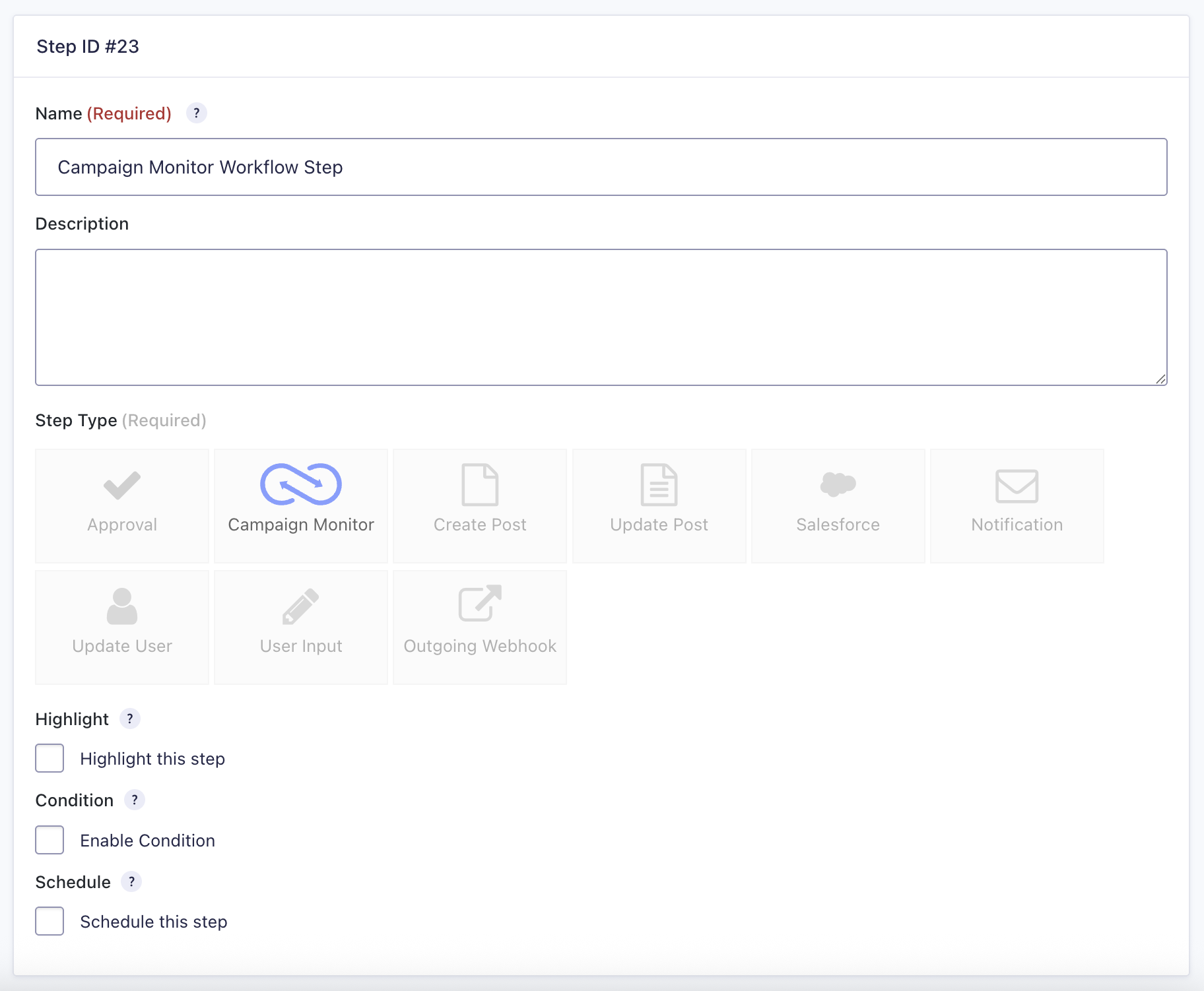
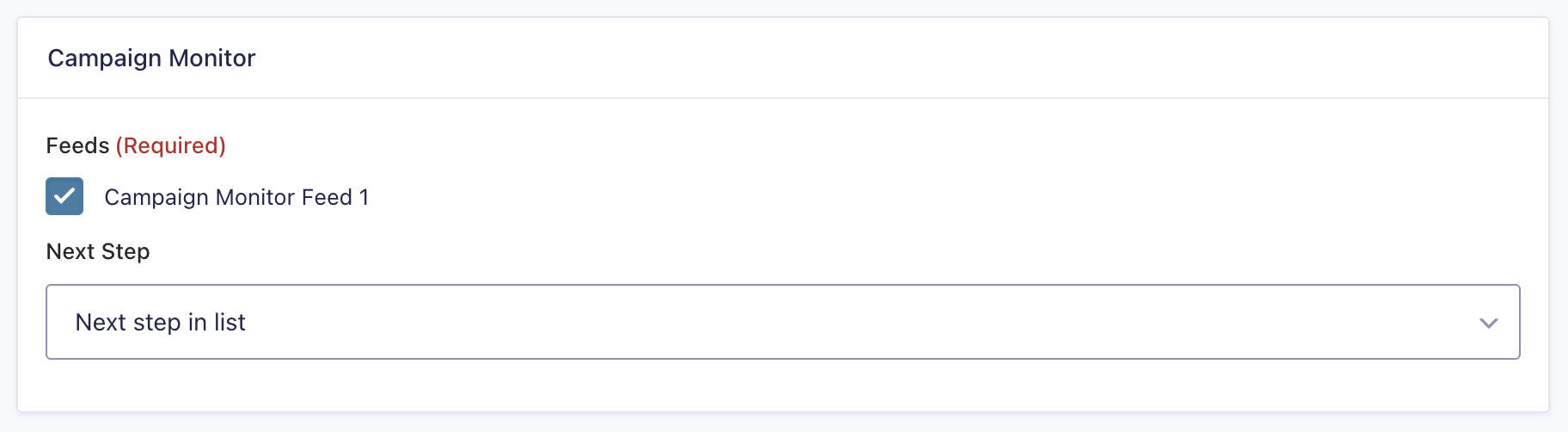
- Under Feeds, select one or more active Campaign Monitor feeds created with the Campaign Monitor Add-On.
- Click Update Step Settings to save the step.
Campaign Monitor Step Settings Reference
| Setting | Description |
|---|---|
| Name | Defines the workflow step name used to identify it within the workflow. Required |
| Description | Provides a short description of what the step does. |
| Step Type | Defines this step as a Campaign Monitor step. Required |
| Highlight | Highlights this step to visually emphasize it in the workflow. |
| Condition | Enables a condition to determine whether the step will run. |
| Schedule | Determines when the step should run within the workflow timeline. |
| Feeds | Selects which active Campaign Monitor feeds to process for this step. If the form has no active Campaign Monitor feeds, a message is shown instead. Required |
| Next Step | Defines the next step in the workflow sequence. |