
Overview
The Gravity Forms EmailOctopus Add-On allows you to integrate your forms with your EmailOctopus account to automatically add subscribers to your lists.
Gravity Flow Integration
When a workflow includes a EmailOctopus step, Gravity Flow ensures that the standard post-submission EmailOctopus feed does not execute automatically. This gives you complete control over when a subscriber is added to your lists.
Place the EmailOctopus step where it makes the most sense, such as after approvals, user input, or internal reviews, to ensure contacts only enter your email lists at the right time.
Creating a EmailOctopus Workflow Step
To add a EmailOctopus step to a workflow:
- From the Form Editor screen, navigate to Settings → Workflow.
- Click Add New Step and enter a Name for the step.
- Choose EmailOctopus as the Step Type.
- Under Feeds, select one or more active EmailOctopus feeds created with the EmailOctopus Add-On.
- Click Update Step Settings to save the step.
[SCREENSHOT PLACEHOLDER: EmailOctopus step settings with the Feeds setting]
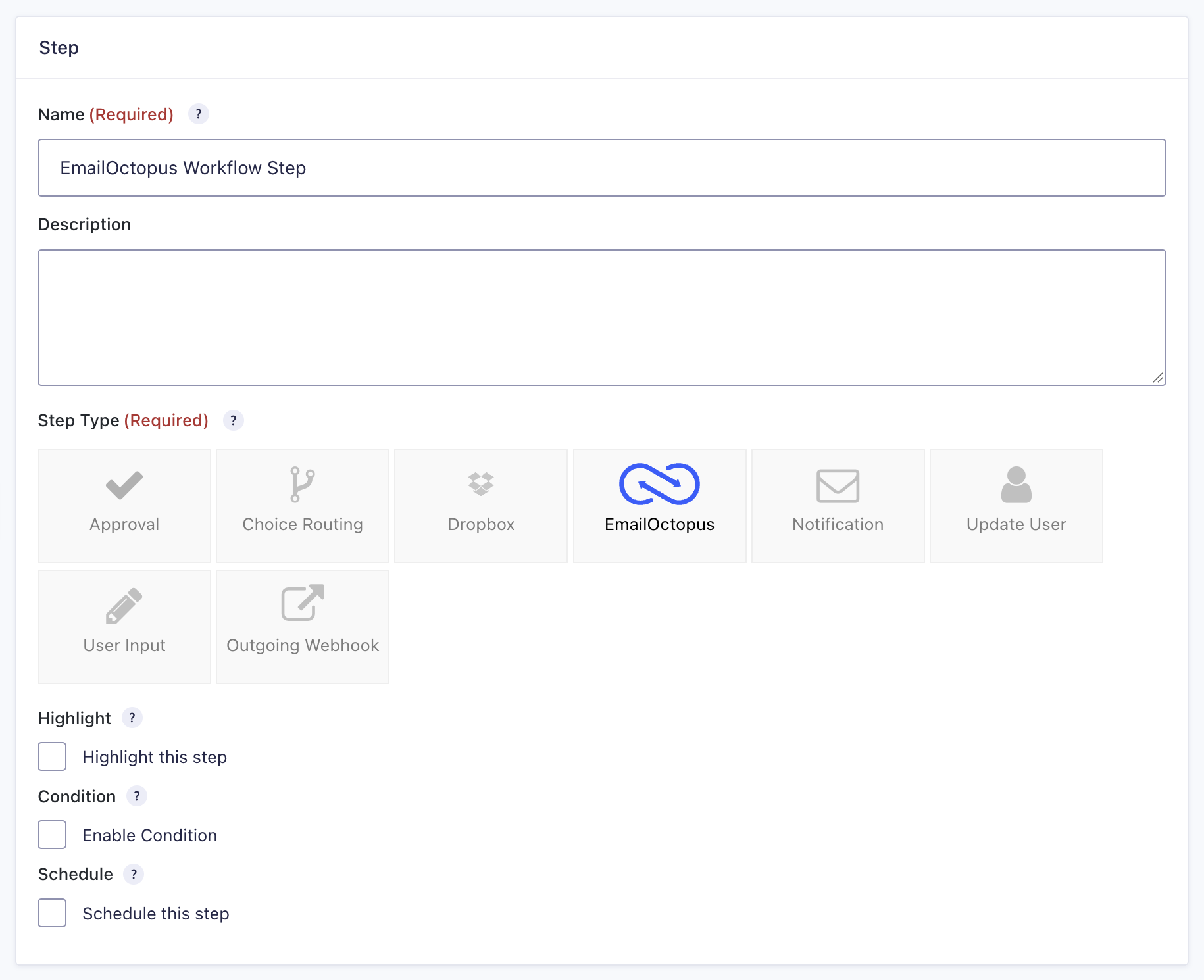
EmailOctopus Step Settings Reference
| Setting | Description |
|---|---|
| Name | Defines the workflow step name used to identify it within the workflow. Required |
| Description | Provides a short description of what the step does. |
| Step Type | Defines this step as a EmailOctopus step. Required |
| Highlight | Highlights this step visually within the workflow. |
| Condition | Enables a condition to determine whether the step will run. |
| Schedule | Delays execution of the step based on a configured schedule. |
| Feeds | Selects which active EmailOctopus feeds to process for this step. If the form has no active EmailOctopus feeds, a message is shown instead. Required |
| Next Step | Defines the next step in the workflow sequence. |