Gravity Flow 3.0 is available to customers with an active license via auto-update and for download from their account area.
As with all our major updates, the public launch of 3.0 will be via a phased rollout to ensure smooth adoption and provide a ramped approach to gathering feedback. This means that you’ll receive the 3.0 update through your WordPress Admin at some point during the rollout period, which is expected to be a few weeks long. However, if you don’t want to wait, Gravity Flow v3.0 is also available to all our customers via a direct download from your account area.
Key Focus
This major release focuses on quality of life features that will help you and your customers to do incredible things with Gravity Flow even more efficiently than you can manage today.
- Configurators and site administrators will find navigating between steps when setting up workflows substantially faster. Especially those who work with sites that have a large number of users.
- Developers who build more customized experiences will enjoy several endpoints available via the V2 Rest API. Each endpoint also has its own documentation page, which will feel familiar if you’ve used any of the Gravity Forms V2 API documentation.
This article covers the main areas of what is included in the release. For full details, refer to the product changelog.
Step Settings Screen
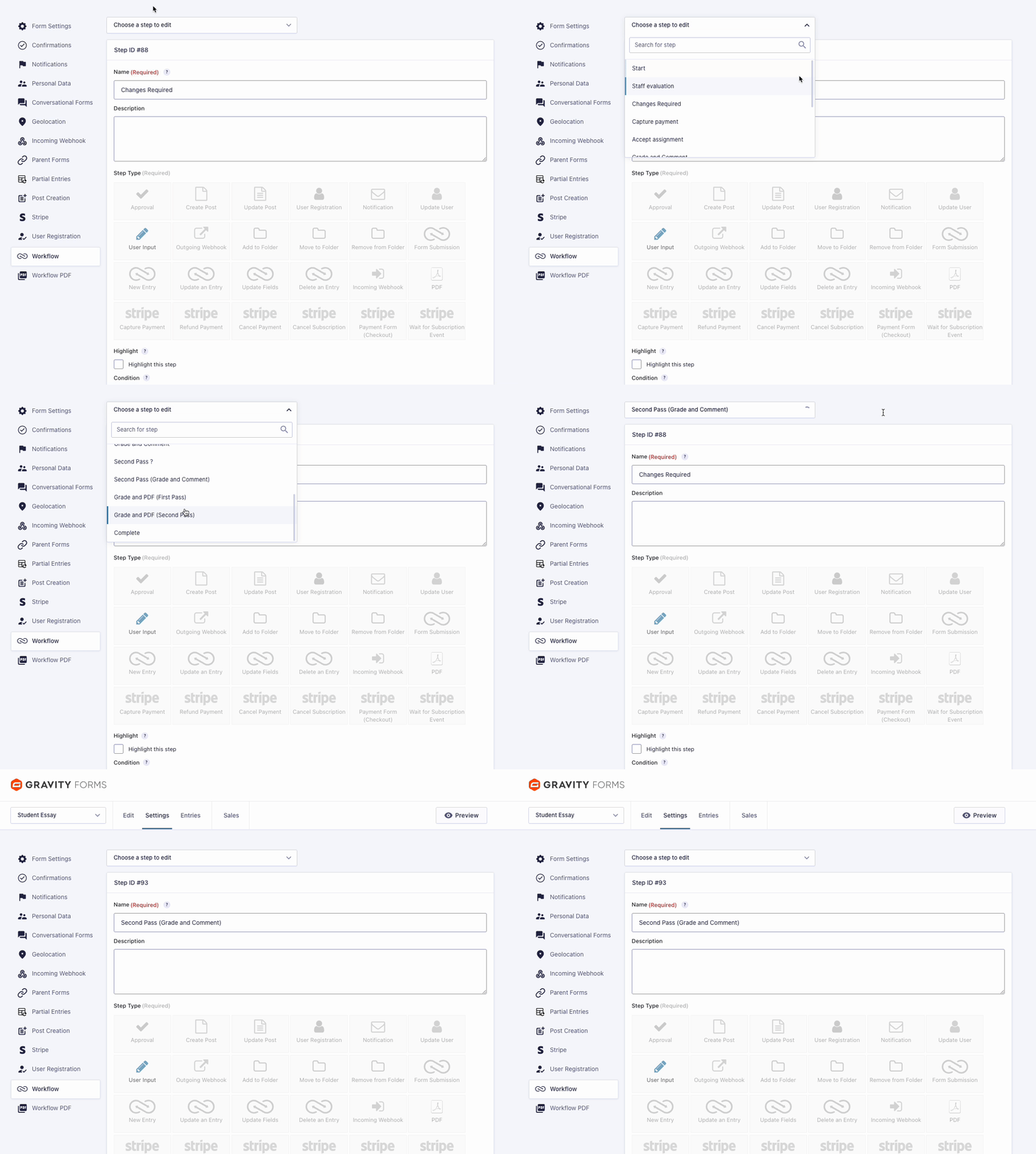
Step Navigator
As your workflows grow in number of steps, start conditions, or next steps to follow, you likely find yourself with a growing number of tabs open as you jump between steps to verify or change settings. Perhaps you keep a separate tab or window open for the step list or the Flow Chart extension.
With Gravity Flow 3.0, there is a Step Navigator at the top of every step settings page. This link lets you quickly access any step in the workflow. As with all navigation links on the page, it will prompt you to confirm your departure if you have made any changes to the step without saving first.
Assignee User Search
Gravity Flow 3.0 has addressed the single biggest performance impact for workflow designers who manage large-volume websites: waiting for the step settings screen to load the hundreds or thousands of users available as potential assignees. Now, if you have more than 150 users, the Conditional Routing and Select Assignees interfaces will only show WordPress roles and email fields along with an API-based search interface.
This feature can be enabled/disabled via the gravityflow_assignee_ajax_search filter or the threshold of 150 customized via gravityflow_assignee_ajax_search_account_threshold.
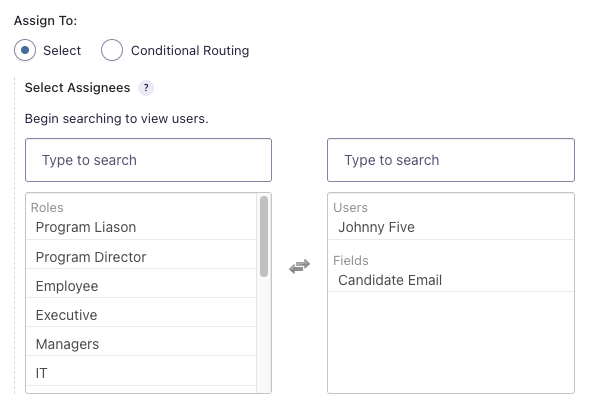
Initial View
No users are visible in the left side of the Select Assignees setting.
Any users previously selected are still available on the right side.
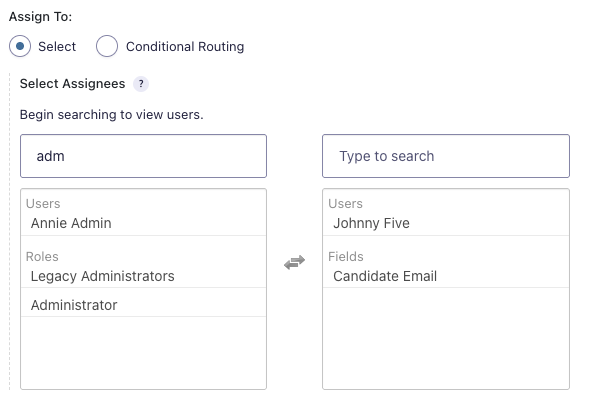
Search View
As soon as you put in 3 characters, the left side of the Select Assignees will begin to update with search results populated from WordPress users, along with any other role or email field names that match the criteria.
Conditional Routing
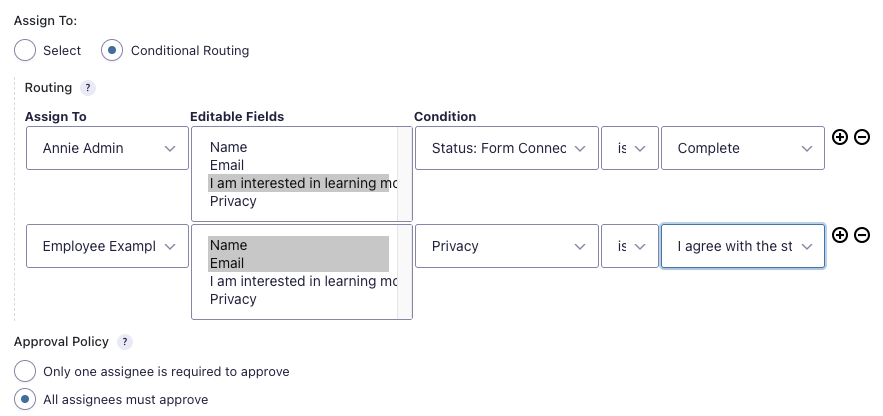
Gravity Flow 2.9
When an Approval or User Input step requires different assignees based on conditions to access and possibly edit different fields, the conditional routing settings were functionally fantastic, but real-estate starved within the step settings screen.
Gravity Flow 3.0
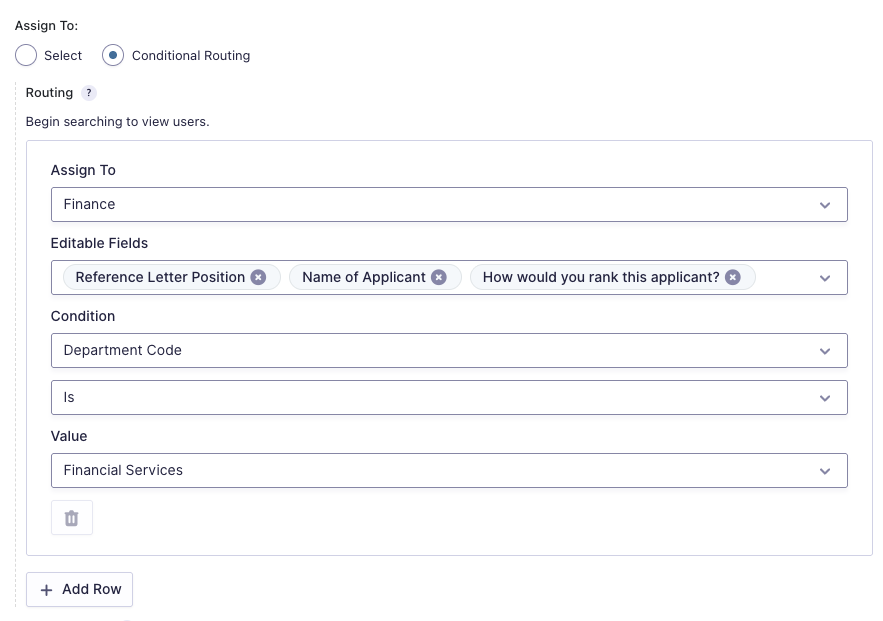
Leveraging some of the components and design concepts that were first built into Gravity SMTP, the conditional routing settings are now a full repeater that starts out with the option to add rows of assignees.
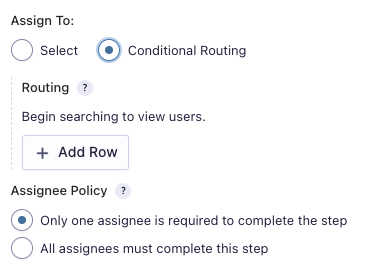
Each row you add has enough visual real estate to make all details easy to see and modify. The Assign To dropdown also provides the same user search behaviour when the site contains more than 150 users.
There are several other areas within the settings of Gravity Flow that this enhancement will show up, including:
- Approval and User Input Steps, where status-driven email recipients can be defined.
- Notification Steps when using the ‘Workflow notification’ setting to define the recipients.
This will not impact any notifications that are configured Gravity Forms Notification and then selected on the step settings. - Gravity Flow PDF steps where you specify the PDF that should be emailed to recipients.
Step List Screen
Bulk Step Controls
The Step List screen is where you start building your workflows and where you will often return as you enhance your workflows to scale and grow with your business. Previously, the screen lacked the interface controls to let you make changes to steps in aggregate that configurators would be familiar with on Gravity Forms admin pages for Forms and Entries or Gravity Flow’s Workflow Status page.
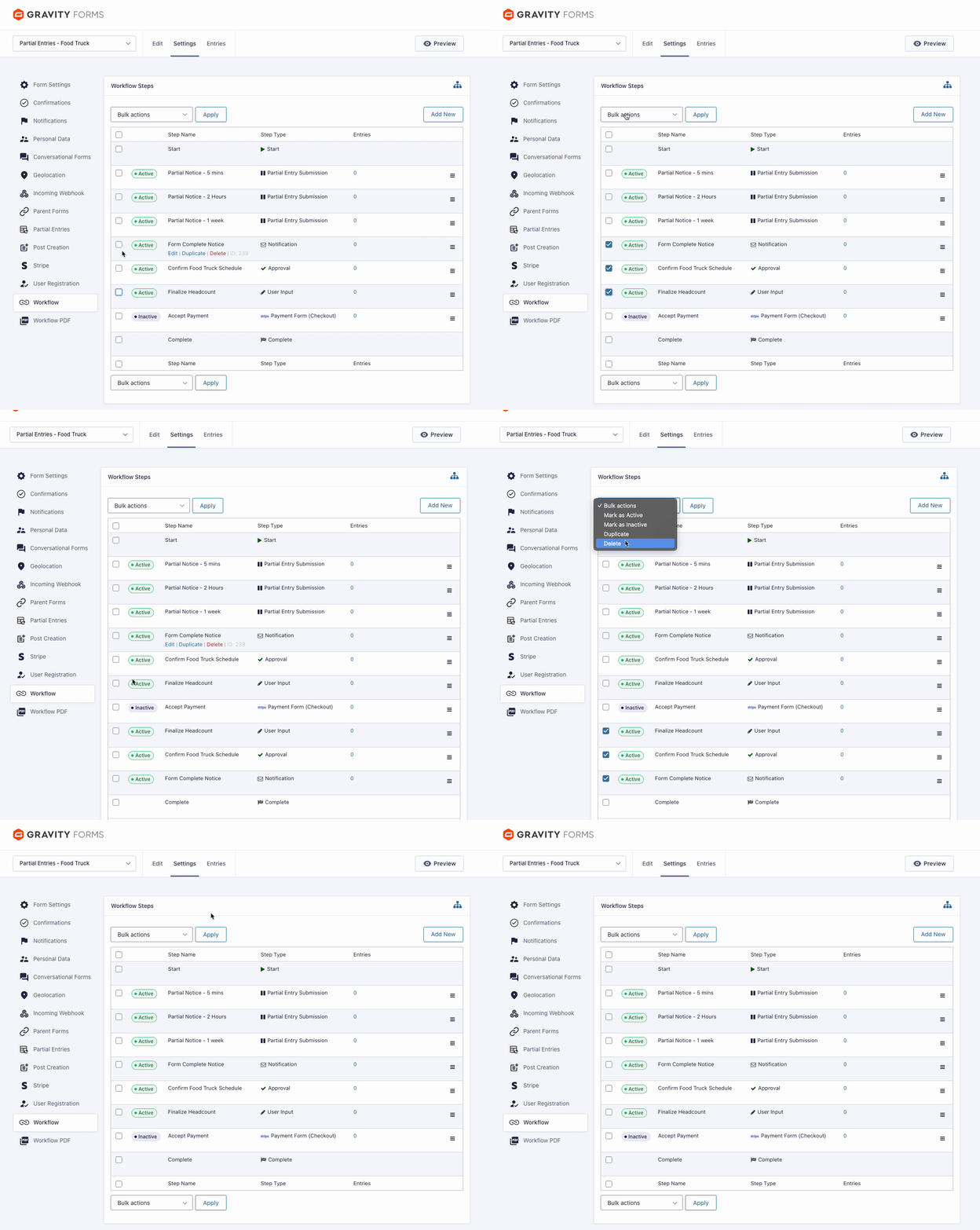
With Gravity Flow 3.0, you are able to select multiple steps and use the Bulk Actions to
- Mark selected steps inactive
- Mark selected steps active
- Duplicate selected steps
- Delete selected steps
This can make it incredibly easy to prototype out different approaches to step interaction during the initial design phase, or quickly remove a subset of steps that are no longer relevant to an existing workflow.
Rest API V2 Endpoints
From its earliest days, Gravity Flow was built with extensibility in mind and a solid Rest API is an essential part of that. Gravity Flow 3.0 is delivering a large improvement by adding almost a dozen new V2 API endpoints that follow the WordPress core approach. These will make it even easier to extend Gravity Flow, whether you are:
- An agency providing Gravity Forms to a customer that requires integrate with a 3rd party system
- A developer in an enterprise-scale org looking to build a bespoke interface for larger initiatives
- Anyone else with requirements where the rendered pages Gravity Flow provides don’t quite align but know the workflow engine at its core provides immense value for your use case.
The new endpoints added are:
Get Steps By Form
Endpoint:
/wp-json/gf/v2/forms/[form_id]/workflow/steps
Method(s): GET
Retrieves all steps for the specified form.
Get Specific Step By Entry
Endpoint:
/wp-json/gf/v2/entries/[entry_id]/workflow/steps/[step_id]
Method(s): GET
Retrieves the specified step for the specified entry.
Send Entry to a Step
Endpoint:
/wp-json/gf/v2/entries/[entry_id]/workflow/steps/[step_id]/send
Method(s): POST
Send the workflow for the specified entry to the specified step.
Cancel Workflow
Endpoint: /wp-json/gf/v2/entries/{entry_id}/workflow/cancel
Method(s): POST
Cancel the workflow for the specified entry.
Incoming Webhook:
Create Entry via Webhook
Endpoint:
/wp-json/gf/v2/workflow/webhooks/{feed_id}/{key}
Method(s): POST
Creates a new entry based on incoming webhook configuration
Incoming Webhook:
Process Step
Endpoint: /wp-json/gf/v2/entries/{entry_id}/workflow-hooks
Method(s): POST
Allows you to complete an incoming webhook step
Get Steps By Entry
Endpoint:
/wp-json/gf/v2/entries/[entry_id]/workflow/steps
Method(s): GET
Retrieves all steps for the specified entry incl. current step status
Get Current Step By Entry
Endpoint:
/wp-json/gf/v2/entries/[entry_id]/workflow/steps/current
Method(s): GET
Retrieves the current step for the specified entry incl. current status.
Restart Current Step
Endpoint:
wp-json/gf/v2/entries/[entry_id]/workflow/steps/[step_id]/restart
or
wp-json/gf/v2/entries/[entry_id]/workflow/steps/current/restart
Method(s): POST
Restart the current step for the specified entry.
Restart Workflow
Endpoint:
/wp-json/gf/v2/entries/{entry_id}/workjflow/restart
Method(s): POST
Restart the workflow for the specified entry.
Process Step for an Asssignee
Endpoint:
/wp-json/gf/v2/entries/{entry_id}/workflow/steps/[step_id]/process
or
/wp-json/gf/v2/entries/{entry_id}/workflow/steps/current/process
Method(s): POST or PUT/PATCH
Updates the status of a specific assignee for the current step of an entry.
Notes:
- In addition to these new endpoints, all other V2 endpoints and our V1 API have received a fresh set of documentation updates. If you’ve used any of the Gravity Forms V2 API documentation previously, you should feel comfortable working with it and the APIs.
- The V1 Rest API has not yet been deprecated, and no specific timeline for it has been identified. However, if you are starting new projects or making significant enhancements to an existing one, we recommend that you start building with the V2 API today.
Gravity Forms and Add-on enhancements
Gravity Flow makes extensive use of the Gravity Forms add-on framework. So it is no surprise that, as we began to look at quality of life improvements within Gravity Flow, some of those would be addressed within Gravity Forms itself. The following improvements are shown in context of Gravity Flow, but you will find the results in many other areas including other add-ons.
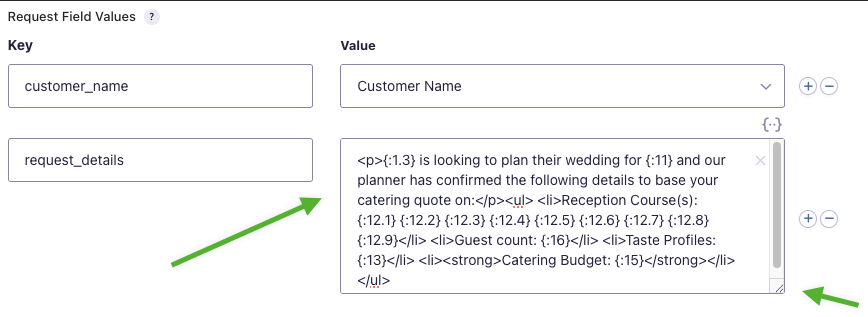
Field Mappings support longer field contents
The outgoing webhook step type and Form Connector extension step types allow you to easily get data from one form entry into multiple different places. Previously, the generic_map setting type would limit the ‘Add Custom Value’ to a single line making it difficult to see/edit data when you wanted to map HTML or multiple fields of data via merge tags. The value setting now includes a resizeable textarea and will load with full contents visible on reload.
Form Navigator retains settings context
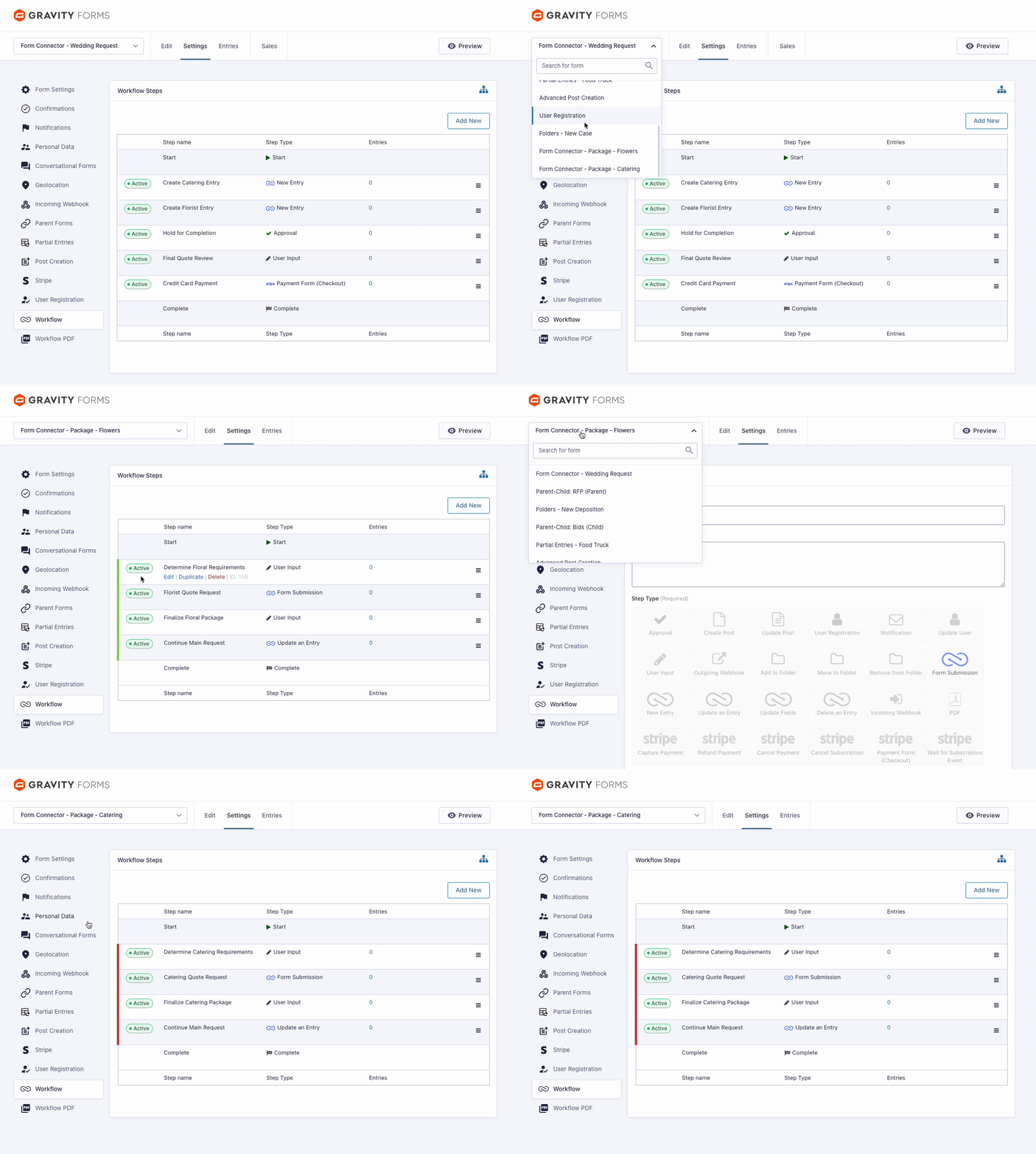
When you need to make changes across several forms, it is frustrating that each time you use the form navigator at the top of the settings screen, it always brings you back to the main settings screen. Now the navigator will bring you as close to the same settings screen in the new form as the one you just left. In the case of Gravity Flow that means you will always return to the Workflow Steps / List screen. Small tweaks like this can make a huge difference when you are comparing approaches used in multiple forms or building business processes that are achieved across multiple workflows.